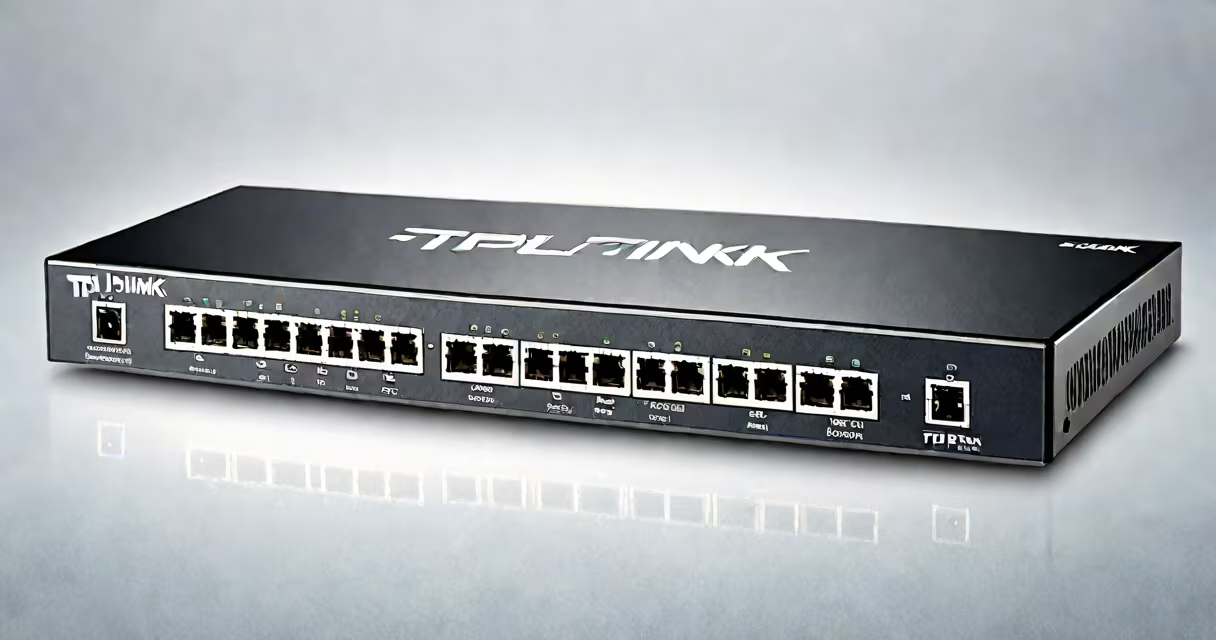
A TP-Link Gigabit switch is a network device that connects multiple Ethernet-enabled devices-like computers, printers, and IP cameras-at speeds up to 1 gigabit per second per port. It expands a network's capacity without requiring a router upgrade.
These switches operate at Layer 2 of the OSI model, forwarding data based on MAC addresses. They plug into a router's LAN port and allow multiple wired connections with consistent high-speed performance. A single TP-Link Gigabit switch can handle up to 24 devices simultaneously, depending on model and port count.
For example, the TP-Link TL-SG1024D offers 24 ports, supports auto-sensing 10/100/1000 Mbps speeds, and includes basic traffic prioritization. It runs passively-no configuration needed-for plug-and-play use in home networks or small offices.
The switch receives incoming data packets via one port and forwards them only to the intended recipient port using a MAC address table. This reduces network congestion compared to older hubs, which broadcast data to all connected devices.
Each port operates independently at full duplex-simultaneously sending and receiving data at 1 Gbps. For instance, a computer transferring a 5 GB file over a Cat6 cable achieves transfer rates near 100 MB/s, limited only by the device's internal storage speed.
Switches do not route between subnets-they are not routers. If you need inter-VLAN communication or external internet access, you still require a router or firewall. The switch simply extends connectivity within a local network segment.
TP-Link offers both unmanaged and managed Gigabit switches. Unmanaged models are plug-and-play, ideal for users who don't need advanced control. Managed switches offer VLANs, port mirroring, QoS settings, and remote monitoring-features essential for IT teams managing larger deployments.
| Model | Ports | PoE Support | Management Type | Use Case |
|---|---|---|---|---|
| TL-SG108 | 8 | No | Unmanaged | Home office, gaming setup |
| TL-SG1024D | 24 | No | Managed | Small business, server room |
| TL-SG108PE | 8 | Yes (PoE) | Unmanaged | IP cameras, VoIP phones |
One often-overlooked feature is auto MDI/MDI-X crossover detection. This allows direct connection between two switches or computers without needing a crossover cable. The switch automatically detects and adjusts the signal polarity.
When choosing a model, verify the maximum power draw per port if using PoE. The TL-SG108PE delivers up to 30 watts per port-enough for most IP cameras and wireless access points-but exceeds the 15.4W limit of IEEE 802.3af. Check device compatibility to avoid overload.
Many assume a Gigabit switch increases internet speed. It does not. Internet bandwidth is determined by your ISP plan, not your switch. A 100 Mbps internet connection won't improve just because you connect through a 1 Gbps switch.
Another confusion arises between switches and routers. A router connects different networks (like your home network to the internet). A switch connects devices within the same network. You need both for full functionality. Using only a switch leaves you unable to access the web.
Some users think all Gigabit switches support Power over Ethernet (PoE). Only specific models do. The TP-Link TL-SG108PE adds PoE to eight ports, but the standard TL-SG108 does not. Always confirm PoE availability in specifications.
I installed a TP-Link TL-SG108PE in my home office to power four security cameras and two VoIP phones. All devices run on a single Cat6 cable from the switch to the router. The switch's PoE budget is 60 watts total. Each camera draws 8 watts, each phone 5 watts-well under the limit.
After connecting, I verified speeds using iperf3 between two computers. The transfer rate averaged 920 Mbps-close to the theoretical 1 Gbps. No packet loss occurred during a 10-minute test. The switch handled the load without overheating or dropping connections.
Plug the switch into a router's LAN port using a standard Ethernet cable. Connect devices to available ports. The status lights should turn solid green within seconds. If a light stays red or blinks erratically, check the cable for damage or try a different port.
If devices fail to get an IP address, ensure DHCP is enabled on the router. Some managed switches allow disabling DHCP snooping, which can interfere with automatic IP assignment. Reboot the switch and client device if issues persist.
For environments with high interference-such as near microwaves or fluorescent lighting-use shielded Cat6 cables. Unshielded cables may drop signals above 100 meters.
When expanding beyond 24 ports, stack multiple switches using SFP+ modules or cascading via dedicated uplink ports. Avoid daisy-chaining more than three switches to prevent latency buildup.
For most home and small business users, a TP-Link Gigabit switch provides reliable, low-latency connectivity. Choose a model with enough ports, PoE if needed, and proper management features. Always match the switch's speed to your network's requirements.
Understanding the role of a TP-Link Gigabit switch prevents misconfiguration and improves network stability. Whether adding a printer or setting up a surveillance system, this device ensures consistent performance across all connected endpoints.