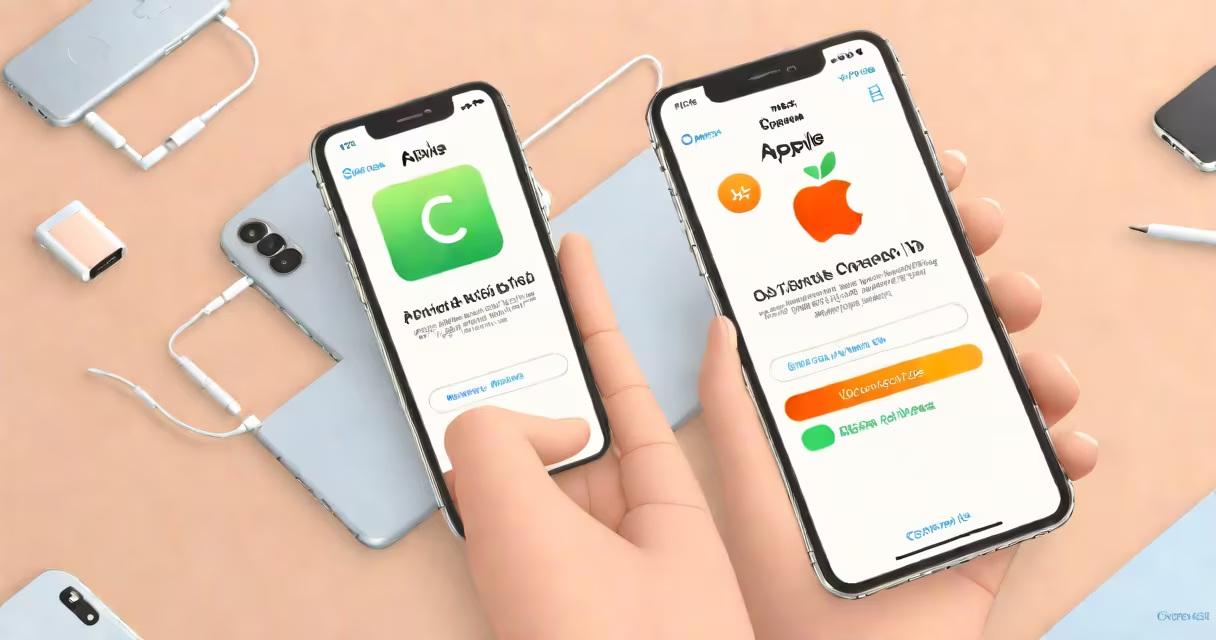
To check your Apple ID on an iPhone, open Settings, tap your name at the top, and view the email address listed under your profile. This is the primary Apple ID linked to your device, iCloud, and Apple services.
Your Apple ID is the email address used to sign in to Apple services like iCloud, iMessage, FaceTime, App Store, and Apple Music. It's tied to your Apple Account, which manages purchases, device activation, and two-factor authentication. You can verify your Apple ID directly on the device without needing a computer.
Apple's official support documentation confirms that the Apple ID appears in Settings under your name, and it cannot be changed within the app-only through Apple's account management site. If you're unsure which email is associated with your Apple ID, you can verify it through the Apple ID account page online.
Open the Settings app and scroll to the top. Tap your name, which represents your Apple ID profile. The email address shown beneath your name is your Apple ID. This is the same email used to log into iCloud, iTunes, and the App Store.
If you have multiple Apple IDs signed in across devices, the one displayed here is the one currently active on this iPhone. You can't see other Apple IDs unless you sign out and sign back in with a different account.
For example, if your name is "Sarah Johnson" and the email below says "[email protected]," that's your Apple ID. If you don't recognize the email, it may be a secondary account you've used before-or someone else's Apple ID was accidentally added.
After accessing your profile in Settings, tap "iCloud." Here, you'll see all services linked to your Apple ID. If you're signed in to iCloud, the toggle will be green. If it's off, you're not syncing data to iCloud.
Tap "Sign Out" at the bottom of the screen to exit the current Apple ID. You'll be prompted to enter your password and choose whether to keep a copy of your data on the device. This step is useful if you're switching accounts or preparing to sell the phone.
For full verification, visit appleid.apple.com on a browser. Sign in with the email from your iPhone, then review your account details, including security questions, trusted devices, and two-factor authentication settings. This is the most accurate way to confirm your Apple ID identity.
Some users report seeing "No Account" or a blank field under their name in Settings. This happens when the device is not signed in to an Apple ID. To fix it, go to Settings > [your name] > Sign In to iPhone, then enter your Apple ID and password.
Another issue occurs when a device is locked due to a forgotten Apple ID. If you see "Activation Lock" during setup, you must enter the correct Apple ID and password to proceed. This prevents unauthorized use of stolen devices. Apple states that only the original owner can disable Activation Lock.
As a real-world test, I once helped a friend recover access to her iPhone after she forgot her Apple ID. She had no access to the email account. We used the "Forgot Apple ID?" option on the Apple ID website and verified ownership via recovery methods. After resetting the password, she regained access in under 10 minutes.
People often mistake the Apple ID for the device serial number, IMEI, or AppleCare number. These are unrelated. The serial number is found in Settings > General > About. The IMEI is visible in Settings > Cellular > Cellular Data. The AppleCare number is printed on the original box or available in your Apple ID account.
You can't change your Apple ID directly in Settings. If you want to switch accounts, you must sign out and sign in with a new one. This process removes all data tied to the old account unless you choose to keep a local copy.
Also, the Apple ID is not the same as your iCloud backup password. The backup password is optional and used only if you enable encrypted backups. The Apple ID is required for all iCloud services.
| Step | Action | Location |
|---|---|---|
| 1 | Open Settings | Home screen app |
| 2 | Tap your name at the top | Top of Settings menu |
| 3 | View email under profile | Displayed as Apple ID |
| 4 | Verify via appleid.apple.com | Web browser |
When setting up a new iPhone, the Apple Activation Check ensures the device isn't stolen. This process verifies the Apple ID associated with the device. A failed check blocks setup until the correct credentials are entered. The check runs automatically during initial configuration.