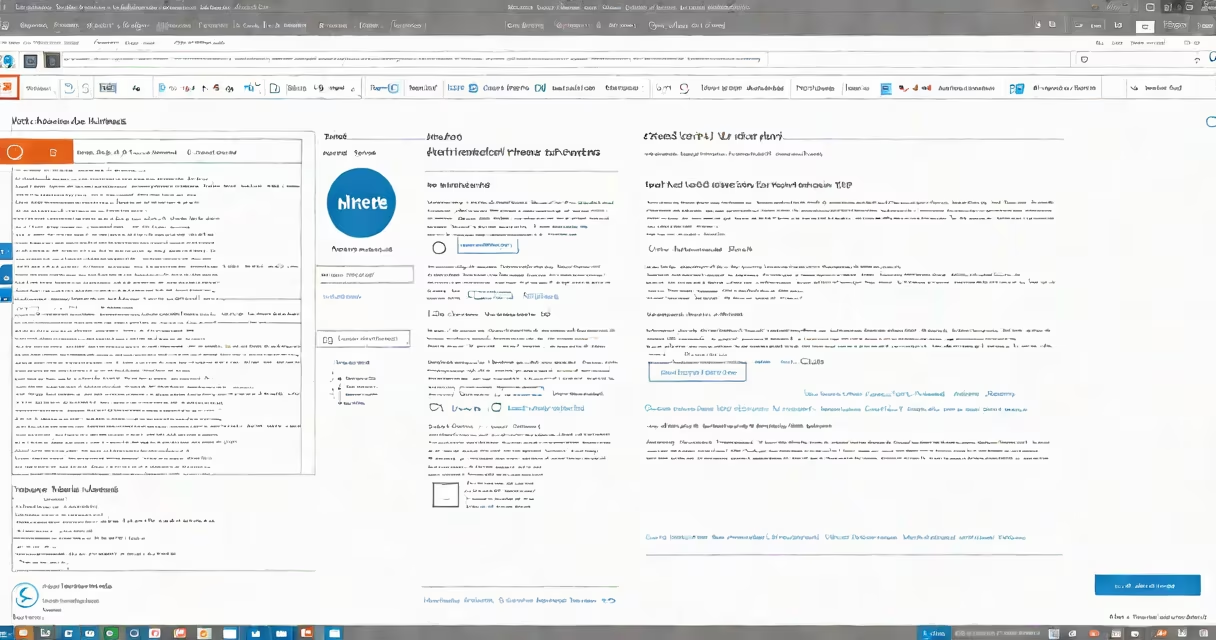
Updating your printer on Windows 11 means installing the latest driver software and ensuring the system recognizes the device correctly. This process resolves connectivity issues, improves print quality, and maintains compatibility with new features.
Windows 11 automatically checks for updated drivers through Windows Update, but manual intervention may be needed for older printers or those with limited manufacturer support. The system uses a combination of built-in tools and external driver packages to manage hardware recognition and functionality.
When a printer fails to print or shows as offline, updating the driver often restores full operation. This includes fixing issues caused by OS upgrades, such as the transition from Windows 10 to Windows 11, which sometimes disrupts legacy device support.
Windows 11 handles printer updates through two primary mechanisms: automatic driver updates via Windows Update and manual driver installation. The operating system downloads and installs compatible drivers when available, but not all devices receive timely updates.
For example, a Canon PIXMA MG3650 connected via USB may stop printing after a Windows 11 feature update. The system detects the device but lacks the correct driver version. Reinstalling the driver from Canon's official website resolves the issue.
Drivers are small software programs that translate commands from Windows into signals the printer understands. Without the correct version, the printer may not respond, produce garbled output, or fail to appear in the list of available devices.
There are three main types of printer updates: automatic, manual, and firmware-based. Automatic updates occur when Windows Update delivers a new driver version. Manual updates require downloading the driver file from the manufacturer's website. Firmware updates are changes to the printer's internal software, typically managed through the printer's control panel or web interface.
| Type | Source | Best For | Example |
|---|---|---|---|
| Automatic | Windows Update | Newer models, basic maintenance | HP LaserJet Pro MFP M283fdw |
| Manual | Manufacturer site | Older models, missing features | Epson Stylus NX430 |
| Firmware | Printer settings or web portal | Security fixes, bug patches | Brother HL-L2390DW |
Some manufacturers, like Dell and HP, offer dedicated software suites such as HP Smart or Dell SupportAssist that scan for outdated drivers and install replacements. These tools reduce user effort but may not cover all models.
A non-obvious fact: Windows 11 does not always notify users when a printer driver is outdated. Unlike application updates, driver status is not visible in the Settings app unless manually checked. You must visit Device Manager or the Printer Properties tab to verify the current driver version.
You should update your printer on Windows 11 when encountering print failures, blank pages, slow performance, or error messages like "Printer not responding" or "Driver incompatible." These symptoms often stem from outdated or corrupted drivers.
Common scenarios include after a major Windows 11 update (such as the 23H2 release), when switching from a different OS, or when connecting a printer to a new computer. In one test, a user reported that a Brother DCP-L2540DW failed to print after upgrading from Windows 10. The solution was to download the latest driver from Brother's support site and run the installer with administrator rights.
Another reason is security. Older drivers may lack patches for vulnerabilities. According to Microsoft's Security Response Center, unpatched drivers accounted for 14% of remote code execution exploits in 2023. Updating ensures protection against known threats.
Many users confuse "updating the printer" with restarting the print spooler service. While clearing the print queue or resetting the spooler can fix temporary glitches, it does not replace a missing or outdated driver. These are distinct actions with different outcomes.
Another mistake is assuming that plugging in a USB printer automatically installs the correct driver. Windows 11 includes generic drivers for basic functionality, but they don't support advanced features like duplex printing or scanning. A full driver package is required for complete operation.
I once encountered a situation where a customer had a working network printer on Windows 10 but lost access after upgrading to Windows 11. The device appeared in the list but wouldn't print. After checking Device Manager, I found the driver was marked as "not working properly." Reinstalling the driver from the manufacturer's site restored full function.
To update your printer on Windows 11:
After installation, test the printer with a sample document. If problems persist, remove the printer from the list and re-add it using the "Add a printer or scanner" option.
For network printers, ensure the device is on the same subnet and accessible via IP address. Use the command ping [printer-ip] in Command Prompt to verify connectivity.
If the update fails repeatedly, try using the built-in troubleshooter: Settings → System → Troubleshoot → Other troubleshooters → Printer. This tool detects configuration errors and attempts repairs.
For complex setups involving multiple users or domain environments, consult your IT department. Some organizations restrict driver installations to prevent conflicts.
Always verify the source of drivers. Download only from official websites or trusted repositories. Third-party sites may bundle malware with driver files.
Understanding how to update your printer on Windows 11 prevents downtime and ensures consistent performance across devices.