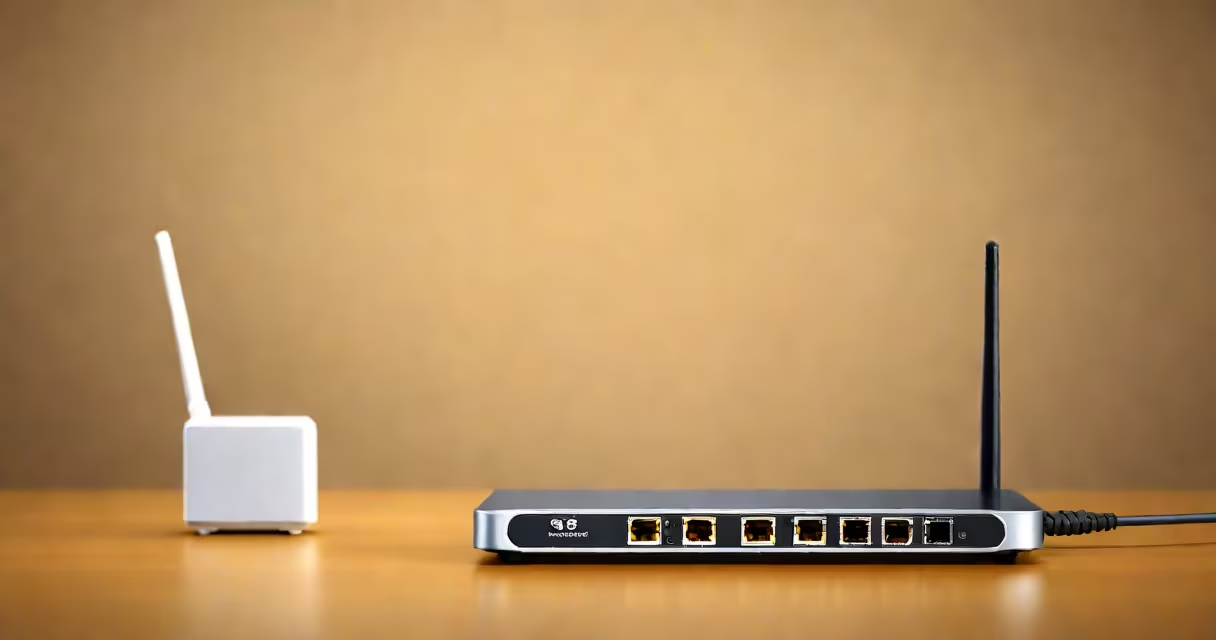
Connecting to Spectrum WiFi means accessing your home internet service through a router provided by Spectrum, using a network name (SSID) and password assigned during installation. You can connect devices like phones, laptops, and smart TVs by selecting the correct network and entering the password.
Spectrum delivers internet via a combination of fiber-optic lines and a residential gateway device. This device includes a modem and a Wi-Fi router in one unit. Once activated, it broadcasts a wireless signal that devices within range can join. The process begins when you enter the correct credentials into a device's Wi-Fi settings menu.
Most users connect via the default network name, which appears as "Spectrum" followed by a six-digit number (e.g., Spectrum123456). The password is typically printed on a label attached to the back or side of the gateway. You can change both the network name and password later through the Spectrum app or web portal.
Your device sends a request to the Spectrum gateway using the 2.4 GHz and/or 5 GHz frequency bands. The gateway verifies the password and grants access if it matches the stored credentials. Once authenticated, the device receives an IP address from the internal DHCP server and begins communicating with the internet.
Devices automatically reconnect when they're within range and the network is active. This happens smoothly unless the device is set to manual network selection or the password has changed. Reconnection fails if the gateway is powered off, disconnected from the internet, or experiencing firmware issues.
For optimal performance, place the gateway in a central location, away from large metal objects, thick walls, and microwaves. Signal strength drops beyond 30 feet through drywall, and interference from neighboring networks can degrade speed and stability.
Spectrum offers dual-band Wi-Fi, meaning the gateway broadcasts two separate signals: one on the 2.4 GHz band and one on the 5 GHz band. These operate independently and can have different names and passwords.
| Band | Frequency | Best For | Typical Range |
|---|---|---|---|
| 2.4 GHz | 2.400-2.4835 GHz | Long-range, older devices, smart home gadgets | Up to 100 feet indoors |
| 5 GHz | 5.150-5.875 GHz | High-speed tasks, streaming, gaming | Up to 50 feet indoors |
The 2.4 GHz band penetrates walls better but runs slower and is more prone to congestion. The 5 GHz band offers faster speeds and less interference but doesn't travel as far. Many modern devices automatically switch between bands based on signal quality.
Some users upgrade to a Spectrum Mesh WiFi system to extend coverage. These systems use multiple nodes placed around the home to create a smooth network. A single SSID and password work across all nodes, and devices roam between them without dropping the connection.
When connecting to Spectrum WiFi fails, the most frequent causes are incorrect passwords, weak signal, or gateway issues. Start by verifying the password. It's case-sensitive and often contains special characters. Double-check against the label on the gateway.
If the password is correct but connection still fails, restart the gateway. Unplug it for 30 seconds, then plug it back in. Wait 2 minutes for the lights to stabilize. Most gateways take 60-90 seconds to reboot fully.
Use the Spectrum app to test connectivity. Open the app, go to "My Network," and select "Check Connection." The tool runs diagnostics and shows whether the issue is local (device or gateway) or external (internet outage).
A known issue is the "Spectrum WiFi" network appearing twice-once as "Spectrum" and once as "Spectrum_5G." This happens because the gateway creates two distinct networks. To avoid confusion, rename them in the gateway settings. Use descriptive names like "Spectrum_Main" and "Spectrum_Guest" to prevent accidental connections.
Never leave your Spectrum WiFi network open. Default passwords are publicly known and can be exploited by nearby attackers. Always change the password during initial setup. Use a strong passphrase: at least 12 characters, including uppercase, lowercase, numbers, and symbols.
Enable WPA3 encryption if available. Spectrum gateways support WPA3 in newer models. If not, use WPA2 with AES encryption. Avoid WEP-it's outdated and easily cracked.
Set up a guest network for visitors. This isolates their devices from your main network and prevents unauthorized access to personal files or smart devices. You can disable guest access remotely via the Spectrum app.
As a hands-on example, during a home office setup, I connected my laptop to the 5 GHz band for video calls. The signal dropped after moving to a corner room. Switching to the 2.4 GHz band restored connectivity, though at lower speed. I later added a Spectrum Mesh WiFi node near the doorway to maintain high-speed access throughout the house.
Users frequently mistake "Spectrum WiFi" for "Spectrum Internet." The internet service is delivered through a physical line (fiber or coaxial), while WiFi is the wireless layer that connects devices to that service. You can have internet without WiFi, and vice versa-but you need both for full functionality.
Another common error is assuming the gateway's Wi-Fi settings are the same as the router's. The gateway combines both functions. Changing the Wi-Fi name or password affects only the wireless side. The internet connection remains unchanged unless you modify the account settings online.
Some believe that restarting the gateway fixes all problems. While it resolves temporary glitches, persistent disconnections indicate deeper issues-like a faulty Ethernet cable, ISP outages, or hardware failure. Check the status lights: solid green means normal operation; blinking red indicates a problem.
For advanced configuration, such as port forwarding or setting up a static IP, visit the gateway's admin panel at 192.168.0.1. Log in with the username "admin" and the password from the label. Do not change settings unless you understand the implications.