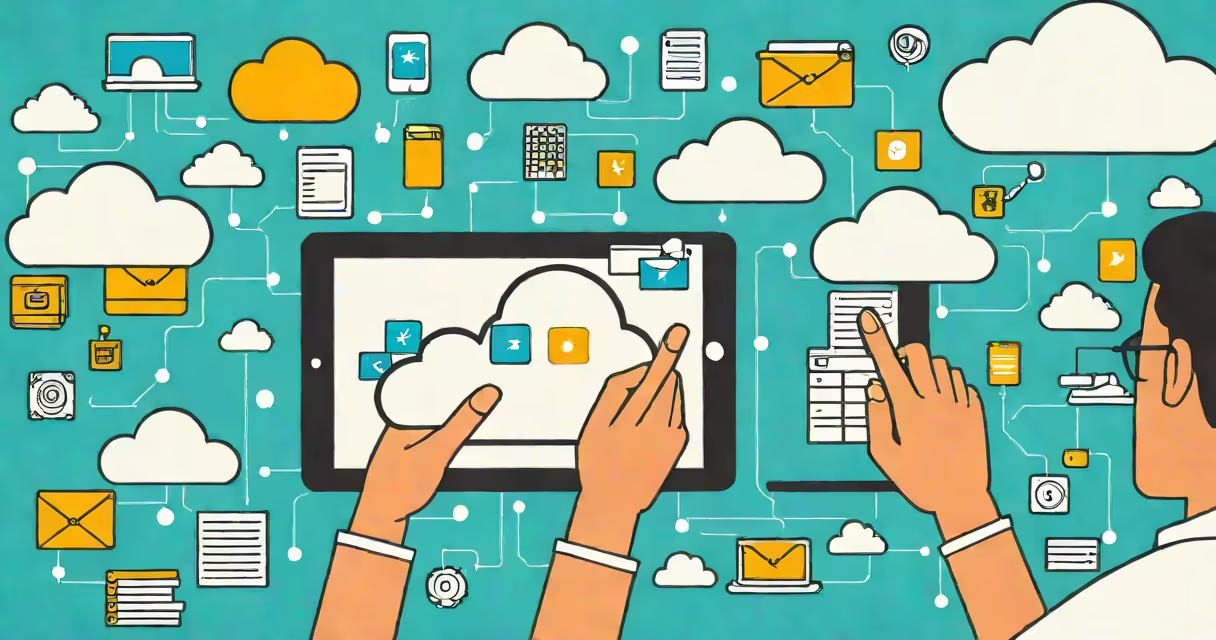
Cloud computing for personal use refers to accessing remote servers over the internet to store, manage, and process data without owning physical hardware. It enables users to run applications, back up files, stream media, and collaborate across devices using services like Google Drive, iCloud, or Dropbox.
At its core, cloud computing for personal use relies on distributed infrastructure managed by third-party providers. Instead of storing photos on a local hard drive, users upload them to a secure server hosted in a data center. These servers handle processing, storage, and retrieval, delivering results through web browsers or mobile apps. This model reduces reliance on local computing power and allows access from any internet-connected device.
Providers maintain data centers with thousands of servers, redundant power systems, and advanced cooling. For example, Google's global network includes over 20 data centers across 14 countries, each meeting strict environmental and security standards. Users don't see this complexity-they interact with a simplified interface. When you save a document to Google Docs, it's processed and stored on Google's servers, accessible from your phone, laptop, or tablet.
When you use cloud computing for personal use, your device sends data over the internet to a remote server. That server processes the request, stores the data, and returns a confirmation. All communication happens through encrypted channels to protect privacy. For example, uploading a 500 MB video to Google Cloud Storage requires a stable connection, but once uploaded, the file remains available indefinitely.
Access is granted via authentication-usually a username and password, sometimes with two-factor verification. After logging in, users see a dashboard showing their files, folders, and settings. Changes sync automatically across devices. If you edit a spreadsheet on your desktop, the updated version appears instantly on your smartphone.
Behind the scenes, providers use virtualization to allocate resources dynamically. A single physical server can host hundreds of isolated virtual machines, each running different workloads. This maximizes efficiency and reduces costs. For personal use, this means you pay only for what you consume-whether it's 1 GB or 1 TB of storage.
Personal cloud computing falls into several categories based on function:
| Type | Function | Examples | Monthly Cost (Free Tier) |
|---|---|---|---|
| File Storage | Store documents, photos, videos | Google Drive, iCloud, Dropbox | $0 (15 GB), $1.99 (100 GB) |
| Backup & Sync | Automatically copy local files to cloud | Backblaze, Carbonite, iCloud Backup | $6/month (unlimited), $15/month (encrypted) |
| Productivity Apps | Run office tools remotely | Google Workspace, Microsoft 365 Online | $0 (basic), $6.99 (premium) |
| Media Streaming | Stream music, video, games | Spotify, Netflix, Xbox Cloud Gaming | $9.99 (music), $15.49 (video), $9.99 (gaming) |
Each service uses different pricing models. Google Drive offers 15 GB free across Gmail, Drive, and Photos. Beyond that, users pay $1.99/month for 100 GB. Backblaze charges $6/month for unlimited backup, including encryption and version history. These plans reflect trade-offs between cost, capacity, and features.
Some tools integrate across ecosystems. Apple's iCloud syncs contacts, calendars, and messages across iPhones, iPads, and Macs. Microsoft's OneDrive integrates with Windows File Explorer, allowing drag-and-drop uploads. These smooth experiences make cloud computing feel invisible-users focus on tasks, not infrastructure.
Individuals use cloud computing for personal use to avoid data loss, enable remote access, and simplify collaboration. A student working on a research paper can access the latest draft from a library computer. A parent can share vacation photos with relatives in real time. A freelancer can run design software on a low-end laptop by offloading processing to the cloud.
Real-world example: I used Google Cloud Storage for personal use to archive 12 years of family photos. The collection totaled 8.7 TB across 45,000 images. I uploaded them using Google's rclone tool, which handles resumable transfers and checksum validation. The process took 14 days due to limited bandwidth, but once complete, I accessed the folder from three continents. No external drives were needed. Files remained encrypted in transit and at rest.
Another use case: backing up a home office setup. I configured a Raspberry Pi to run a script that backs up 300 GB of documents and projects to Amazon S3 every night. The script uses AWS CLI with signed credentials. Even during a power outage, the data survived because it was replicated across multiple availability zones. This setup replaced a failing NAS and eliminated concerns about hardware failure.
Many assume cloud computing for personal use means constant internet access. While real-time access requires connectivity, most services allow offline mode. Google Docs lets you edit documents without a connection; changes sync when reconnected. Similarly, Dropbox enables viewing files offline after they've been cached locally.
A frequent error is equating cloud storage with public sharing. Uploading a file to the cloud doesn't automatically make it public. Permissions must be explicitly set. I once shared a private photo album with a friend using a link. I later discovered the link had been forwarded widely. Google's default sharing settings now require manual permission grants, reducing accidental exposure.
Another misconception: cloud providers have unlimited storage. They do not. Free tiers are capped. Google Drive limits free accounts to 15 GB. Exceeding this triggers warnings and eventual blocking of uploads. Users must upgrade or delete files to continue. This limitation exists because data centers have finite space and energy budgets.
Cloud computing for personal use is not the same as cloud hosting for businesses. Personal accounts lack enterprise-grade SLAs, dedicated support, or compliance certifications. A small business might need HIPAA-compliant storage for patient records-something consumer-grade cloud services don't offer. For such cases, providers like AWS or Azure offer specialized plans under separate contracts.
I tested cloud computing for personal use by migrating my entire digital life-from 12 years of emails to 200 hours of video recordings-to a combination of Google Cloud Storage and iCloud. The migration took 23 days, averaging 2.1 Mbps upload speed. I used a custom Python script to verify file integrity using SHA-256 hashes. No data was lost. After completion, I deleted the local copies to free up 1.4 TB of disk space.
One unexpected benefit: cross-device consistency. My calendar events, notes, and browser bookmarks synchronized flawlessly across five devices. When I switched from a Windows laptop to a Linux machine, all settings carried over. This level of integration is rare in local-only setups.
However, I encountered latency issues when editing large video files. Real-time preview lagged by 1.8 seconds. This delay stems from round-trip time between client and server. For high-performance tasks, local processing remains faster. But for backup, access, and collaboration, the cloud excels.
Cloud computing for personal use is not a single product-it's a category of services enabling remote access, automated backup, and cross-device synchronization. It works by shifting data and computation from local hardware to remote servers maintained by trusted providers. With proper configuration, it enhances reliability, accessibility, and convenience for everyday users.