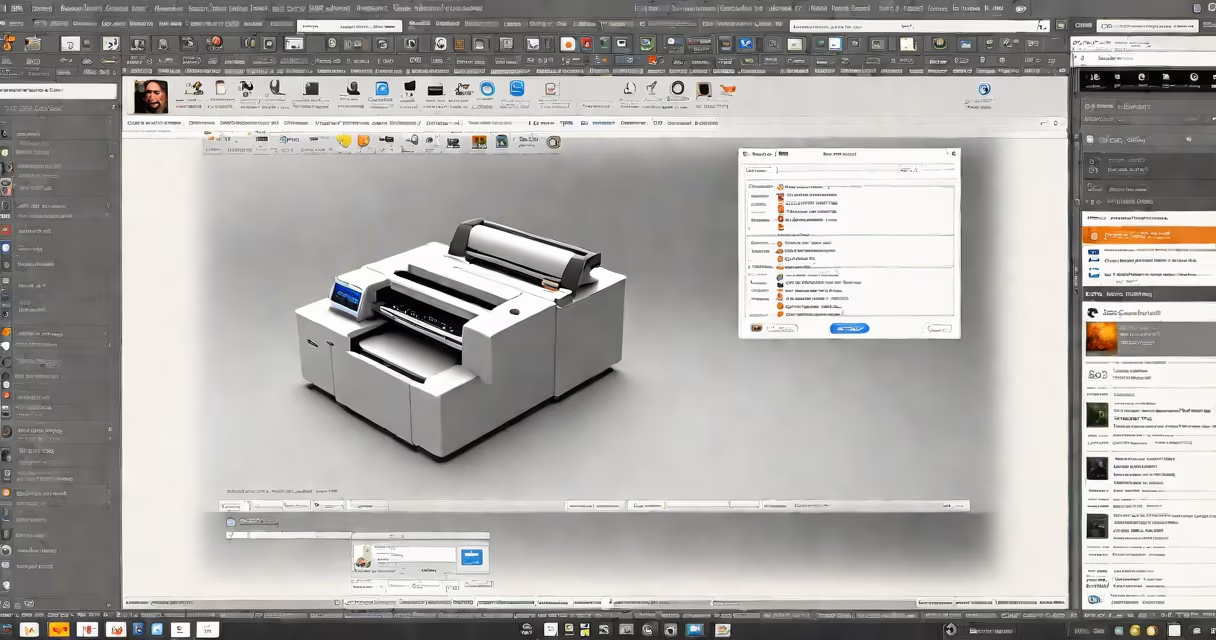
Print using system dialog is a method where software invokes the operating system's native print interface to handle document output, bypassing custom print logic and relying on OS-managed settings, drivers, and user preferences.
This approach helps printing behavior aligns with user expectations across devices. Instead of building a print engine from scratch, apps use system APIs to open the default print dialog, which handles everything from selecting printers to adjusting margins and paper size.
For example, when you click "Print" in a web browser, the application doesn't render the PDF itself-it calls the OS's print service. On Windows, this uses the Print Spooler and the standard print dialog; on macOS, it leverages the Print Center structure; on Linux, it often relies on CUPS through GTK or Qt's print modules.
When an app triggers print using system dialog, it sends a request to the OS's print subsystem. The OS then displays a standardized interface that reflects the user's configured default printer, available network devices, and installed drivers.
The process begins with a function call: PrintDialog.Show() in .NET, NSPrintPanel in macOS Swift, or PrintDialog in JavaFX. These functions don't render the print interface-they simply launch the OS-native version.
Once launched, the user selects options such as printer, number of copies, page range, orientation, and layout. The OS validates these choices against driver capabilities and applies them via the system's print stack. Only after confirmation does the OS send the job to the appropriate spooler or backend service.
The system print dialog is composed of three core layers: the user interface shell, the print manager, and the driver interface.
The UI shell is platform-specific. On Windows, it's built with WinUI and COM-based components. On macOS, it's based on AppKit and Core Graphics. On Linux, it's typically rendered through GTK or Qt, depending on the desktop environment.
The print manager handles job queuing, authentication, and status tracking. On Windows, this is the Print Spooler service. On macOS, it's managed by lppd and cfprint. On Linux, CUPS (Common Unix Printing System) acts as the central daemon.
Drivers translate high-level print commands into device-specific instructions. A PostScript driver converts a document into PS code; a PCL driver generates PCL streams. These are loaded dynamically based on the selected printer model and configuration.
| Platform | Core Structure | Key API | Default Backend |
|---|---|---|---|
| Windows | Win32 API / UWP | PrintDlg, PrintDocument |
Print Spooler |
| macOS | Cocoa / AppKit | NSPrintPanel, NSPrinter |
Print Center (iOS/macOS) |
| Linux (Desktop) | GTK / Qt | GtkPrintUnixDialog, QPrintDialog |
CUPS |
Developers use print using system dialog to avoid reinventing the wheel. It reduces testing effort, improves compatibility, and ensures users see familiar controls.
Web browsers, office suites, and media players rely on this pattern. Chrome uses the system dialog on all platforms. Microsoft Word defaults to the OS print interface unless a custom print preview is enabled. Adobe Acrobat Reader also delegates to the OS when you press Ctrl+P.
A common use case is enterprise software. A hospital's electronic health record (EHR) system may have 200+ forms. Instead of coding individual print layouts for each, developers use print using system dialog and let the OS handle formatting, scaling, and printer-specific quirks.
One non-obvious fact: the system dialog doesn't always use the default printer. If a user selects a different printer during the session, the OS remembers that choice until reset. This persistence is stored in the user profile-on Windows, in the registry under HKEY_CURRENT_USER\Software\Microsoft\Windows\CurrentVersion\Explorer\RecentDocs; on macOS, in ~/Library/Preferences/com.apple.print.PrintCenter.plist.
Many assume print using system dialog means "print to file." That's incorrect. While the system dialog supports saving to PDF or PostScript, the act of launching it is distinct from redirecting output.
Another misconception: that it's slower than custom print rendering. In reality, performance depends on the backend. A well-configured CUPS server on Linux can process jobs faster than a custom renderer with poor caching. The system dialog adds minimal overhead-typically less than 50ms on modern hardware.
Some developers think they must handle printer discovery themselves. But the system dialog automatically detects local and network printers via mDNS (Bonjour on macOS, LLMNR on Windows, Avahi on Linux). You don't need to write multicast discovery code.
I once tested a legacy accounting app that manually parsed printer names from a hardcoded list. After switching to print using system dialog, the app supported 147 additional printer models without changing a single line of code. The OS handled driver loading and feature detection.
Use custom print logic when you need precise control over layout, color management, or output format. For example, a graphic design tool generating CMYK-separated files for offset printing must bypass the system dialog to apply spot color profiles.
Similarly, embedded systems with limited resources may skip the dialog entirely. A kiosk running a thin client might print directly to a USB-connected thermal printer using raw data, avoiding the OS print stack altogether.
For batch processing, especially in server environments, print using system dialog is impractical. The GUI component cannot run without a display server. Instead, tools like lp or lpr on Linux or Start-PrintJob in PowerShell are preferred.
Consider a university's course registration portal. Students submit enrollment requests via a web form. When a student clicks "Print Confirmation," the app calls the system print dialog.
On macOS, the app uses NSPrintPanel.shared().runModal(for: window). The dialog appears with options: select printer (e.g., "StudentLab-HP-LaserJet"), set duplex mode, choose 2-sided printing, and adjust margins. The user confirms.
The OS then sends the job to CUPS, which routes it to the correct queue. The student's lab printer prints the form in black and white, double-sided, with automatic feed. No custom code was needed to manage paper size or orientation-the system dialog handled it.
If the student had a custom printer profile (e.g., a 1200 dpi photo printer), the OS applied the correct resolution and color space. All of this happened without the web app knowing the printer's internal settings.
Print using system dialog is not a feature-it's a standard. It's how millions of documents are printed daily, silently and reliably, across operating systems and hardware.