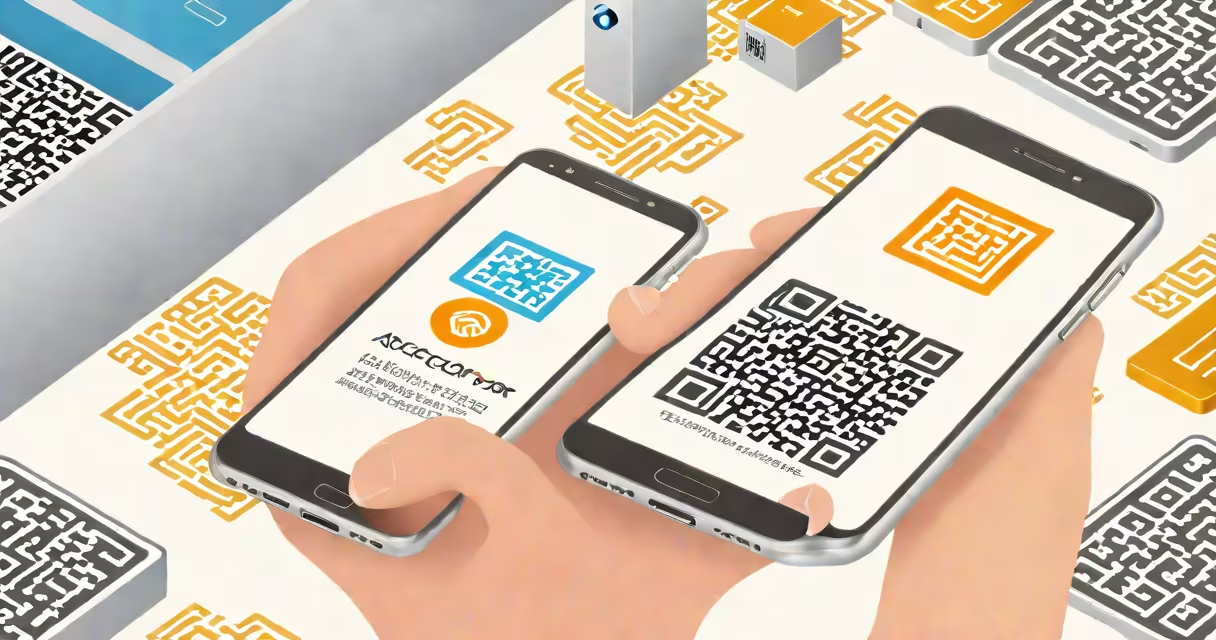
A authenticator code is a time-based, six-digit passcode generated by an app on your smartphone to verify your identity during two-factor authentication. It's used to confirm you're the rightful owner of an account, typically alongside a password.
These codes are created locally on your device using a shared secret key and a time sync mechanism. They expire after 30 seconds and are unique to each login attempt. Unlike SMS-based codes, they don't rely on cellular networks and are not vulnerable to SIM-swapping attacks.
Authenticator codes are required by services like Microsoft, Google, Facebook, and banks when enabling two-factor authentication. You cannot receive them via email or text unless the service specifically supports it. The code must be generated by a verified authenticator app.
When you enable two-factor authentication on a website or app, the service generates a secret key and presents it as a QR code or alphanumeric string. Scanning this with an authenticator app links your account to the app.
The app uses the secret key and the current time to generate a new six-digit code every 30 seconds. This process follows the Time-Based One-Time Password (TOTP) standard defined in RFC 6238. The server checks the code within a small window of time, usually ±30 seconds, to allow for clock drift.
For example, if you log into your Google Account and enter your password, the system prompts you for a second factor. You open the Google Authenticator app, which displays a code like 482917. You enter that code on the login screen. The server verifies it against its own calculation and grants access.
There are two main types of authenticator apps: those that scan QR codes and those that require manual entry of a secret key. Most modern apps support both.
| App Type | Setup Method | Best For | Security Level |
|---|---|---|---|
| Google Authenticator | Scan QR code or enter secret key manually | Basic accounts, quick setup | High (open-source, widely audited) |
| Microsoft Authenticator | Scan QR code or use account linking flow | Microsoft services, multi-account management | Very high (supports push notifications) |
| Authy | QR scan or manual entry with cloud backup | Users who want cross-device sync | High (but backup increases risk if compromised) |
Setting up with a QR code is faster and less error-prone. The service displays a QR code on-screen. Open your authenticator app, tap "Add account," then use the camera to scan the code. The app imports the secret key and begins generating codes.
If scanning fails, you can manually enter the secret key. These keys are long strings like "JBSWY3DPEHPK3PXP" and are case-sensitive. Typing errors during manual entry cause setup failure.
Many users fail to get a valid authenticator code because their phone's clock is off. Authenticator apps depend on accurate time synchronization. If your device's time is incorrect, the generated code won't match the server's expected value.
Check your phone's date and time settings. Ensure "Set automatically" is enabled under Settings > General > Date & Time. On iOS and Android, this pulls time from network servers. A misaligned clock can cause codes to fail for up to 30 minutes until the device corrects itself.
Another frequent issue is using the wrong app. Some people install a generic "authenticator" app from an untrusted source. These may not follow the TOTP standard or could log your codes. Always download authenticator apps from official stores: Google Play or Apple App Store.
I once set up two-factor authentication for a personal email account using a third-party app from a shady developer site. After entering the code, the login failed repeatedly. I realized the app wasn't syncing properly. Switching to Google Authenticator resolved the issue in under a minute.
An authenticator code is not the same as a recovery code, a password, or a SMS verification code. Recovery codes are one-time, long strings used to regain access if you lose your device. They are not time-based and should be stored securely offline.
Unlike SMS codes, authenticator codes do not go through your carrier. They are generated locally and never leave your device. This makes them immune to SS7 vulnerabilities and SIM swap fraud.
Some services offer "backup codes" or "recovery keys" during setup. These are meant to be printed and kept in a safe place. Losing both your device and your recovery codes locks you out permanently. Always store recovery codes separately from your phone.
Follow these steps to generate your first authenticator code:
Once set up, you'll see a new entry in your authenticator app labeled with the service name (e.g., "Google Account") and a rotating six-digit code. Use this code whenever prompted during login.
For advanced users, some services allow you to export your secret keys to a secure vault. This enables recovery on a new device without needing to re-scan the QR code. However, this requires careful handling-exposing the secret key compromises your account.
Authenticator codes are more secure than SMS-based two-factor authentication. According to the National Institute of Standards and Technology (NIST), SMS-based codes are vulnerable to interception and should not be used for high-risk accounts.
Google also recommends using authenticator apps over SMS. In a 2022 report, Google confirmed that accounts using TOTP-based authenticators were 99% less likely to be compromised than those relying on SMS.
If you lose your phone, you can still regain access using recovery codes. But if you didn't save them, you may need to contact the service's support team and verify your identity through alternative means-often requiring proof of ownership like old emails or billing records.
To avoid lockout, always keep a physical copy of your recovery codes in a fireproof safe. Avoid storing them in cloud services like Google Drive or iCloud unless encrypted.