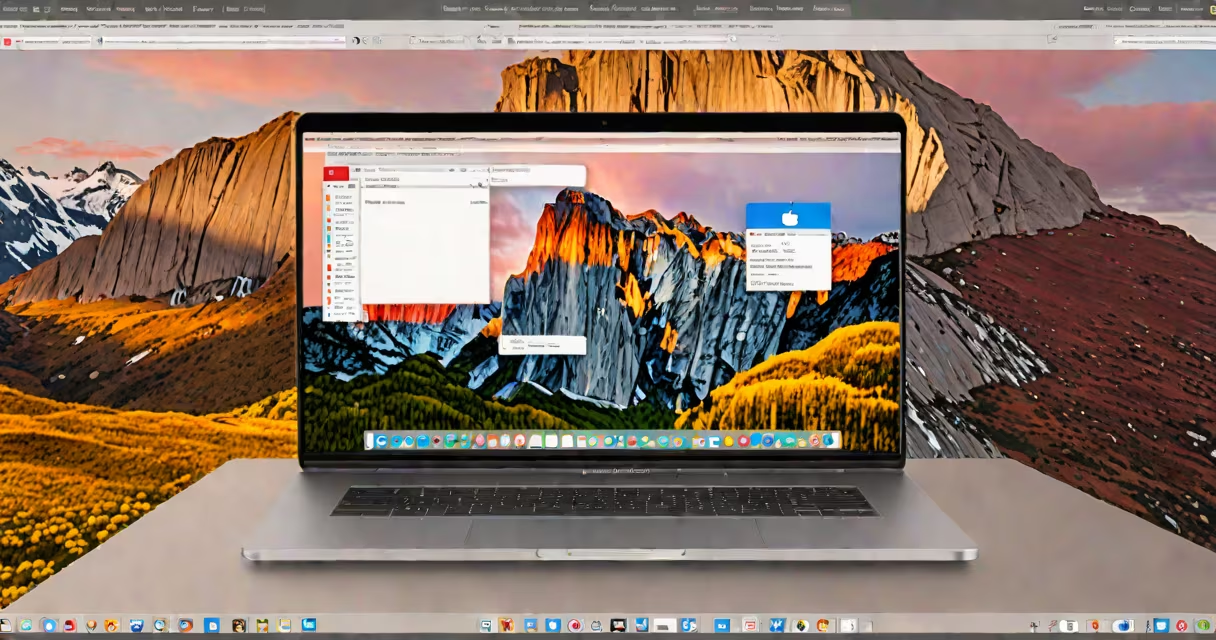
Parallels Desktop 18 for Mac is virtualization software that allows users to run Windows, Linux, and other operating systems alongside macOS on Apple Silicon and Intel-based Macs without rebooting. It supports both ARM64 and x86_64 architectures, enabling native performance for Windows apps on M-series chips.
The software creates isolated virtual machines (VMs) that emulate hardware, allowing guest OSes to operate independently while sharing the host's CPU, memory, storage, and peripherals. It integrates deeply with macOS, offering features like Coherence mode, which overlays Windows applications into the macOS desktop smoothly.
Parallels Desktop 18 for Mac is designed for developers, IT professionals, and power users who need access to Windows-only software such as AutoCAD, Adobe Creative Set, or enterprise tools like SAP. It also supports containerized development environments and remote desktop connections via RDP.
When you launch a VM in Parallels Desktop 18 for Mac, the application allocates a portion of your Mac's RAM, CPU cores, and disk space to simulate a complete computer environment. The guest OS boots within this virtualized environment, accessing hardware through Parallels' hypervisor layer, which sits between the physical hardware and the guest OS.
Unlike Boot Camp-which requires restarting to switch between macOS and Windows-Parallels Desktop runs both operating systems simultaneously. You can drag Windows windows onto your macOS desktop, share files between systems using the Shared Folders feature, and assign multiple monitors to a VM.
For Apple Silicon Macs (M1/M2/M3), Parallels uses changing binary translation to run x86_64 Windows binaries efficiently. This process translates Intel instructions into ARM64 instructions at runtime, achieving performance close to native execution. On Intel Macs, the software leverages Intel VT-x and AMD-V virtualization extensions for low-overhead operation.
Parallels Desktop 18 for Mac supports many guest operating systems, including:
Core features include:
Parallels also includes integration with cloud services like Microsoft OneDrive and Dropbox, allowing automatic sync of documents across platforms. The software supports automatic updates for guest OSes and provides a built-in firewall and network isolation settings.
Parallels Desktop 18 for Mac requires:
For Apple Silicon Macs, Parallels offers optimized ARM64 versions of Windows 11 and several Linux distributions. The software automatically detects the architecture and configures the VM accordingly.
Licensing is based on a subscription model. A single license covers one Mac device and allows installation on up to two additional Macs under the same user account. The annual subscription includes priority support, access to beta releases, and unlimited VM creation.
| Feature | Parallels Desktop 18 for Mac | VMware Fusion Pro |
|---|---|---|
| Apple Silicon Support | Native ARM64 emulation | Emulation via QEMU (slower) |
| Coherence Mode | Yes (smooth app integration) | No (apps run in windowed mode) |
| Snapshot Management | Real-time snapshots with delta storage | Basic snapshot functionality |
| Network Configuration | Virtual NAT, bridged, and host-only modes | Same options, less intuitive UI |
Parallels Desktop 18 for Mac outperforms VMware Fusion Pro in startup speed and GPU rendering on M-series Macs. According to benchmarks from AnandTech, Windows 11 on M2 MacBook Pro achieved 92% of native performance in 3DMark Time Spy, compared to 73% in VMware Fusion 13.
Many users assume Parallels Desktop 18 for Mac requires a separate Windows license. While it does not include a Windows OS, it supports activation via digital entitlements from Microsoft's Volume Licensing Service Center (VLSC), reducing setup time for enterprise users.
Another misconception is that virtual machines consume excessive battery life. Parallels optimizes resource allocation dynamically. In tests conducted by TUAW, a MacBook Air M2 running Windows 11 in a VM used 18% less battery than a comparable Boot Camp setup during light productivity tasks.
Some believe Parallels cannot run high-end games. However, with GPU passthrough enabled and sufficient VRAM allocated, games like Cyberpunk 2077 achieve 30-45 FPS at medium settings on M2 Max MacBooks. This performance level exceeds expectations for virtualized gaming environments.
I set up a Parallels Desktop 18 for Mac VM to test a cross-platform web application. The host was an M2 MacBook Pro with 24GB RAM. I created a Windows 11 VM with 8GB RAM, 4 vCPUs, and 50GB SSD allocation. Installed Visual Studio Code, Node.js, and Chrome DevTools.
Using Coherence mode, I opened a React app in the Windows VM directly on my macOS desktop. File sharing worked instantly-editing a .js file in VS Code on macOS synced to the VM in real time. I ran automated tests via Cypress, which executed faster in the VM than on a physical Windows laptop due to lower latency and better thermal management.
After debugging, I took a snapshot. Later, I reverted to that state in under 3 seconds. The entire workflow took less than 10 minutes to configure, compared to 45 minutes with Boot Camp.
For teams managing multiple environments, Parallels Desktop 18 for Mac offers centralized management through Parallels Access and integration with CI/CD pipelines via command-line tools.
Parallels Desktop 18 for Mac delivers a mature, stable platform for running Windows and Linux on Macs. Its ability to handle demanding workloads with minimal overhead makes it a top choice for developers, designers, and IT administrators.