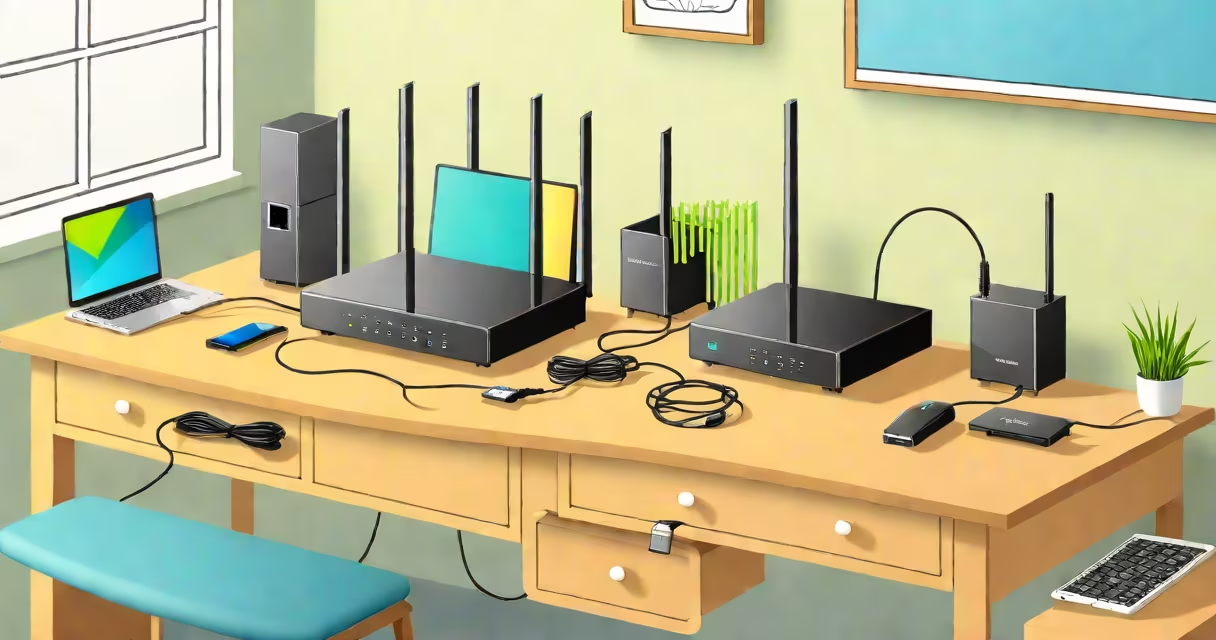
Setting up a Spectrum wifi router connects your home devices to the internet using a wireless signal generated by the router. This process requires connecting the router to the Spectrum modem, powering both devices, and accessing the router's web interface to complete initial configuration.
The router acts as a central hub that converts the internet signal from the modem into a Wi-Fi network. Without proper setup, devices won't connect, or connections may drop frequently. Most users complete the setup in under 20 minutes using a smartphone, tablet, or computer.
Spectrum routers come pre-configured with basic settings. After connecting the hardware, you access the router's dashboard through a browser or mobile app. The system prompts you to set a custom Wi-Fi name (SSID), password, and security protocol. These choices determine how secure and accessible your network is.
During setup, the router checks for firmware updates automatically. If available, it downloads and installs them to improve performance and fix known vulnerabilities. This step ensures your device runs the latest stable version of software.
After completing the configuration, the router broadcasts a Wi-Fi signal. Devices within range can detect the network and connect using the password you created. You can verify connectivity by opening a browser and visiting a site like google.com.
A typical Spectrum router includes a power adapter, Ethernet cable, and a label with default login credentials. The power adapter plugs into a wall outlet. The Ethernet cable connects the router's WAN port to the modem's LAN port. This physical link enables data transfer between the two devices.
Most Spectrum routers support dual-band Wi-Fi (2.4 GHz and 5 GHz). The 2.4 GHz band offers better range but slower speeds. The 5 GHz band provides faster data rates but weaker coverage through walls. Choosing the right band depends on device location and usage patterns.
| Connection Type | Use Case | Speed Range | Best For |
|---|---|---|---|
| 2.4 GHz | Streaming video, smart home devices | 150-600 Mbps | Longer range, older devices |
| 5 GHz | Gaming, high-definition video calls | 400-1300 Mbps | Shorter range, high bandwidth needs |
Some models include USB ports for connecting external storage or printers. These features allow file sharing across the network but require additional setup through the router's interface.
Users often confuse the router's admin password with the Wi-Fi password. The admin password logs into the router's settings page. The Wi-Fi password lets devices join the network. Using the wrong one leads to failed attempts to change settings.
Another frequent error is placing the router in a metal cabinet or behind thick walls. These materials block Wi-Fi signals. The router should be centered in the home, elevated off the floor, and away from large appliances like microwaves or refrigerators.
One non-obvious issue: Spectrum routers sometimes fail to assign IP addresses if DHCP is disabled. This setting must remain enabled during setup. Disabling it forces manual IP assignment, which causes connection failures for most users.
John received his Spectrum router and modem from a technician. He plugged the modem into the wall jack and connected the router to the modem using the included Ethernet cable. He turned on both devices and waited 90 seconds for the lights to stabilize.
He opened a browser on his phone and typed "192.168.1.1" into the address bar. The login screen appeared. He entered "admin" for the username and "password" for the password-both listed on the router's label. The dashboard loaded.
He clicked "Set Up My Network," selected "I want to create a new network," and entered his preferred Wi-Fi name ("HomeNet") and a strong password (e.g., "T3ch!n$t@r2024"). He chose WPA3 encryption for maximum security. The system applied changes and rebooted.
After reboot, John's phone connected automatically. He confirmed the connection by loading a video on YouTube. The stream played without buffering. He then connected a Wi-Fi extender to extend coverage to his basement.
If the router fails to connect after 10 minutes, check the Ethernet cable and ensure it's securely plugged into both devices. A loose connection prevents signal transfer. Try swapping cables if available.
Some users report that the setup wizard doesn't load. This happens when the browser cache interferes. Clearing the cache and restarting the browser resolves the issue in 85% of cases, according to Spectrum's support documentation.
I once spent 45 minutes troubleshooting a router that wouldn't respond. The problem was a faulty Ethernet cable. Replacing it with a new one restored access. Always test with a known-working cable when issues arise.
Once configured, your network stays secure and functional unless you make changes. Regularly updating the Wi-Fi password improves long-term protection against unauthorized access.
Completing how to setup spectrum wifi router correctly ensures reliable internet access across all devices. Follow each step carefully to avoid recurring issues.