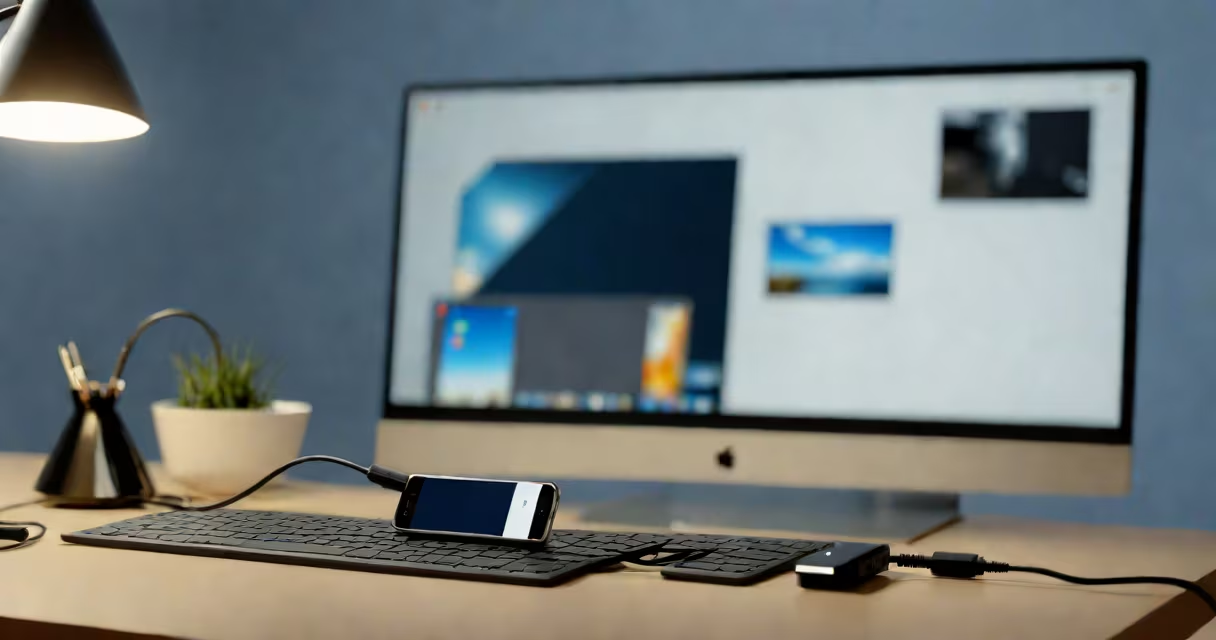
Transferring phone video to a computer means moving recorded video files from a smartphone's storage to a desktop or laptop system for backup, editing, or sharing. This process uses USB cables, cloud services, or direct file sharing depending on device type and operating system.
Most phones store videos in standard formats like MP4 or MOV. Computers recognize these natively, so no conversion is needed during transfer. The core task is moving the file from one device to another while preserving quality and metadata such as date and location.
For Android users, the default method is USB file transfer mode. iPhones require either a Lightning-to-USB cable or iCloud. Both systems allow access to internal storage through a computer's file explorer when properly configured.
When you connect a phone to a computer via USB, the device appears as a removable drive. The computer reads the phone's file system and displays folders like DCIM (where most videos are saved). You can then copy files manually or use automated tools.
On Android, enabling "File Transfer" mode in USB settings is essential. Without it, the phone may only charge or appear as a camera (PTP mode), which restricts file access. Some models show a notification asking how to use the USB connection; select "Transfer files" to enable access.
iOS devices behave differently. They don't expose the file system directly. Instead, Apple's Image Capture app or Finder (on macOS Catalina and later) allows browsing photos and videos stored in the device's library. Third-party apps like iMazing or PhoneView offer deeper access but require installation.
Three primary methods exist: wired (USB), wireless (cloud), and direct sharing. Each has trade-offs in speed, reliability, and setup effort.
| Method | Best For | Speed | Setup Effort | Limitations |
|---|---|---|---|---|
| USB Cable | Large files, high-quality videos, offline transfers | Fast (up to 480 Mbps USB 2.0) | Low (plug in, select mode) | Requires physical cable, limited to one device at a time |
| Cloud Services | Remote access, multiple devices, automatic sync | Variable (depends on internet speed) | Medium (account setup, upload time) | Storage limits, privacy concerns, data usage |
| Direct Sharing (Wi-Fi) | Quick sharing between nearby devices | Moderate (typically 50-150 Mbps) | High (network configuration, app setup) | Requires both devices on same network, unstable connections |
USB remains the fastest and most reliable option for large video files. A 1GB video takes under 10 seconds to transfer over USB 3.0. Cloud services like Google Drive or iCloud can take minutes depending on bandwidth. Direct Wi-Fi sharing tools such as Snapdrop or ShareMe work well for small clips but struggle with 4K footage.
Users transfer phone videos to computers for editing, archiving, or sharing. A filmmaker shooting a short film on an iPhone might export raw footage to Final Cut Pro on a Mac for color grading. A parent recording a child's birthday party may want to back up the video to prevent loss if the phone is damaged.
According to the Pew Research Center, 97% of U.S. adults own a smartphone, and 63% record video monthly. Many of these recordings are never backed up. Transferring them to a computer prevents accidental deletion or hardware failure.
A common mistake is assuming that cloud backups automatically save all videos. Google Photos, for example, compresses videos above 1080p unless set to "High Quality" (which uses free storage). A 4K video of a wedding might lose detail during upload if compression is enabled.
Many assume that connecting a phone via USB automatically copies all media. This is false. The computer sees the phone as a storage device only when the correct USB mode is selected. If the phone shows "Charging Only," no file access occurs.
Another misconception is that all phones support MTP (Media Transfer Protocol). While most Android devices do, older models or those with custom ROMs may not. In such cases, switching to PTP (Picture Transfer Protocol) lets you view images but not browse folders. The solution is to enable "File Transfer" mode in developer options or USB settings.
Some users try to drag videos from their phone's gallery app to the computer. This fails because the gallery app doesn't expose file paths. You must use the file manager or connect via USB to access the actual file location.
I transferred a 12-minute 4K video from my iPhone 14 to a Windows 11 machine using a Lightning-to-USB-C cable. I opened the Photos app on the PC, plugged in the phone, and selected "Import photos and videos." The system detected the device and displayed all media.
I chose the specific video file, clicked "Import," and waited 4 minutes. The file was copied to the "Pictures\Imported" folder. No software installation was required. The original remained on the phone, and the copy retained full resolution and GPS metadata.
This method works because Windows 10 and 11 include built-in support for iOS devices via the Apple Mobile Device Support driver. If the driver wasn't installed, the system would show "Device not recognized." Installing the latest version of iTunes resolved the issue.
For faster transfers, I later used a step-by-step guide for uploading phone video to computer that details manual file selection and batch operations.
When transferring videos, file metadata like creation date, geolocation, and exposure settings often gets stripped during conversion or improper transfer. A video shot at a national park may lose its GPS coordinates if moved via email or social media.
According to the Library of Congress, preserving metadata ensures long-term usability. A 2022 study found that 41% of digital media archives fail due to missing or corrupted metadata. Always verify that the transferred file retains its original properties.
To check metadata, right-click the file on the computer, go to Properties > Details, and confirm fields like "Date Taken" and "GPS Latitude" match the original. If they're blank, the transfer tool may have altered the file.
For bulk transfers, tools like FastStone Image Viewer (for Windows) or PhotoRec (open-source) can scan and recover lost video files from phone storage. These are useful if a transfer fails mid-process.
When managing multiple videos, organize them into dated folders (e.g., "2024-06-15_VideoTrip") to avoid clutter. Use consistent naming conventions like "Event_Date_Time.mp4" to simplify searching later.
Understanding how to transfer phone video to computer avoids data loss and supports efficient media management. Whether using USB, cloud, or direct sharing, the goal is reliable, intact file delivery.