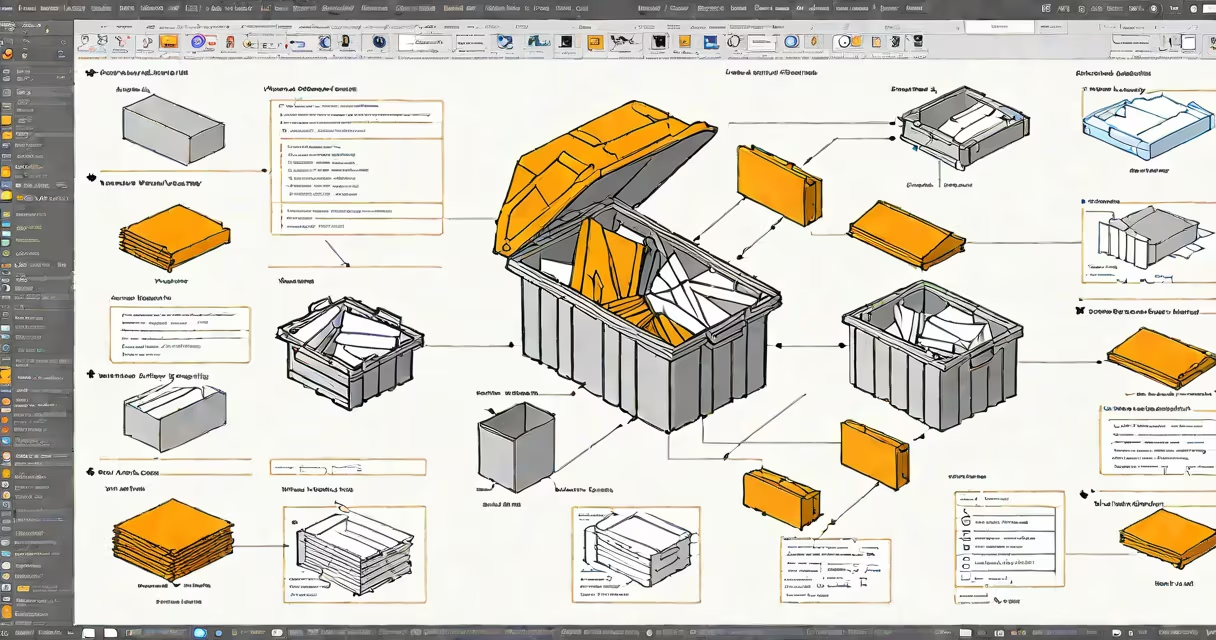
Restoring deleted files from the trash bin means retrieving items moved to the system's temporary storage after deletion, before they're permanently erased. This process works only if the files remain in the trash and haven't been emptied or overwritten.
When you delete a file on macOS, Windows, or Linux, it moves to a designated trash or recycle bin folder. These locations act as a safety net, holding files for a set period or until manually emptied. As long as the trash hasn't been cleared, the original file remains intact on the disk, allowing recovery through system tools or specialized software.
Recovery success depends on whether the file was truly deleted or merely hidden. If the trash hasn't been emptied, restoring deleted files from trash bin is straightforward. Once emptied, the space is marked as available, increasing the risk of overwrite-but recovery may still be possible using forensic tools.
The trash bin functions as a temporary holding area. On macOS, it's located at ~/Desktop/.Trash or within the Dock icon. On Windows, it's C:\$Recycle.Bin. Files stay here until the user empties the trash or the system clears it automatically based on settings.
When you restore a file from the trash, the operating system copies it back to its original location. The file's metadata-name, creation date, permissions-is preserved. The actual data remains unchanged on the disk unless the space is reused.
For example, if you delete a document named report_final.docx from your Documents folder and later realize the mistake, you can open the trash, select the file, and choose "Put Back" on macOS or "Restore" on Windows. The file returns to the original directory with no changes to its content.
Different operating systems handle deleted files differently. Understanding each system's behavior is essential for successful recovery.
| OS | Trash Location | Auto-empty? | Recovery Tools | Limitations |
|---|---|---|---|---|
| macOS | ~/.Trash |
No (unless configured) | Finder "Put Back," Time Machine, third-party tools | Files persist until empty; no automatic cleanup |
| Windows 10/11 | C:\$Recycle.Bin |
Yes (default) | File Explorer "Restore," Recuva, PhotoRec | Auto-empty after 30 days or when disk space low |
| Linux (GNOME) | ~/.local/share/Trash |
No | Nautilus "Restore," testdisk | Behavior varies by desktop environment |
On macOS, the trash doesn't auto-empty. Files remain until manually removed. This gives users a longer window for recovery. However, if you use Cmd+Shift+Delete to bypass the trash, files go straight to permanent deletion.
Windows defaults to auto-emptying the recycle bin after 30 days or when disk space runs low. This means files may vanish without warning. According to Microsoft's documentation, the recycle bin size is capped at 10% of the drive's capacity or 16 GB, whichever is smaller.
A lesser-known fact: Even after emptying the trash, the file's data often persists on the disk until overwritten. A study by the National Institute of Standards and Technology (NIST) confirmed that data remains recoverable for weeks after deletion, depending on usage patterns.
Many users assume that emptying the trash means immediate and irreversible deletion. This is false. Emptying the trash removes the file's pointer from the directory structure but leaves the raw data on the disk until new data overwrites it.
Another misconception is that all deleted files can be restored. If the trash was emptied and the disk has since been used heavily, the file may have been overwritten. In such cases, recovery tools must scan for fragments rather than whole files.
Some users try to restore files by editing the trash folder directly. This is risky. Manually copying files from ~/.Trash or $Recycle.Bin can corrupt metadata or fail due to permission issues. Always use the system's native restore function first.
In 2022, a freelance graphic designer accidentally emptied her trash while working on a client project. She had saved multiple versions of a logo design in a folder she later deleted. After realizing the error, she used a tool called PhotoRec-a free, open-source utility developed by the GNU Project-to scan her external SSD.
PhotoRec recovered 12 of the 15 deleted files, including the final version of the logo. The tool didn't rely on file system metadata but instead searched for known file signatures (e.g., FF D8 FF for JPEGs). It found the files because the disk hadn't been written to since deletion.
This case illustrates that even after emptying the trash, recovery is possible-if the disk hasn't been reused. However, success rates drop sharply after 24 hours of continued use.
If the trash was emptied and no recovery tool finds the file, the data is likely overwritten. The chances of recovery fall below 10% after 100 writes to the same disk sector, according to research from the University of California, San Diego.
For critical data, prevention is better than cure. Enable automatic backups via Time Machine on macOS or File History on Windows. These tools create snapshots at regular intervals, preserving files even after deletion.
Always stop using the affected drive immediately after deletion. Continued activity increases the chance of overwriting the data. Disconnect the drive or boot from a live USB to prevent further writes during recovery attempts.
Restoring deleted files from trash bin is effective only if the trash hasn't been emptied and the disk hasn't been reused. Built-in tools work reliably for recent deletions. For older or empty trash scenarios, third-party tools offer a last resort-but success is not guaranteed.
Use caution. Never write to the drive after deletion. Keep backups. And remember: the trash is a buffer, not a vault.