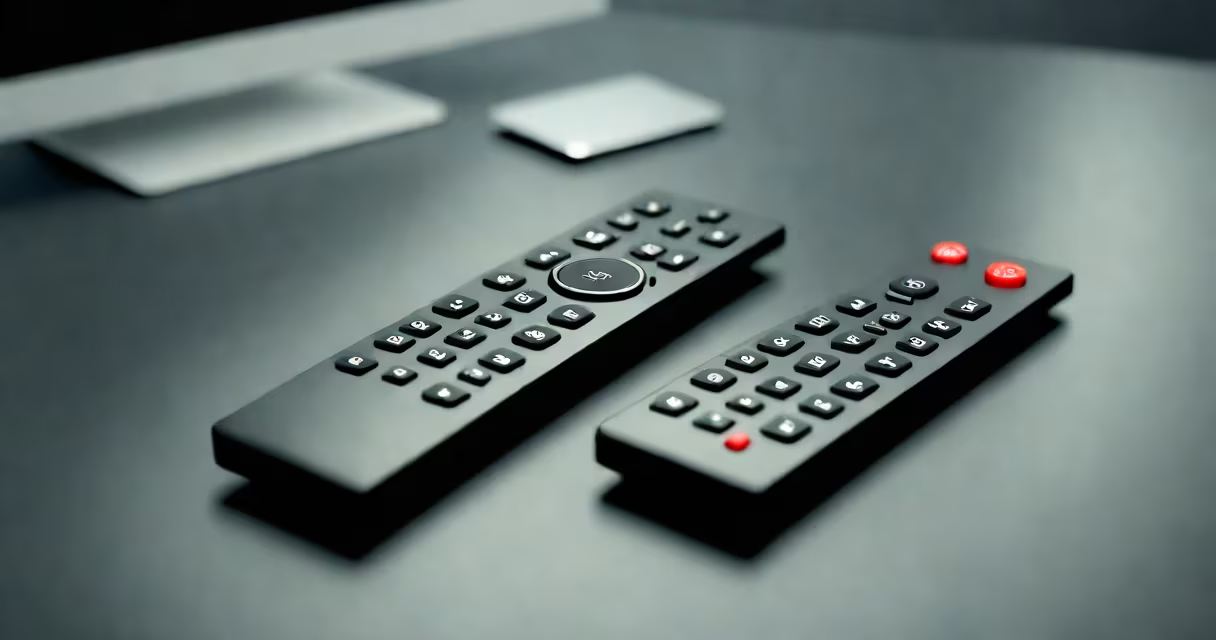
A media remote for PC is a software or hardware tool that lets you control video playback, audio, and media applications on a Windows or macOS computer from a distance using a smartphone, tablet, or dedicated remote device. It enables pause, play, volume adjustment, playlist navigation, and sometimes full system commands-all without touching the computer.
These tools work by establishing a network connection between the remote device and the host PC. Most rely on Wi-Fi or Bluetooth, though some support Ethernet or direct IP connections. The remote sends input signals-like keyboard shortcuts or touch gestures-to the PC, which interprets them as media controls through compatible apps such as VLC, Plex, or Windows Media Player.
For example, using the free app Remote Mouse on an Android phone, you can turn your device into a wireless mouse and keyboard. When paired with a media app like VLC running on the PC, the phone becomes a full remote: swipe left to skip tracks, tap the center button to play/pause, and adjust volume via on-screen sliders. No additional hardware is required beyond a stable Wi-Fi network.
Media remotes for PC operate over local networks using protocols like HTTP, UDP, or WebSocket. The PC runs a server application or service that listens for incoming commands. The remote device acts as a client, sending requests based on user input. These commands are translated into actions-such as pressing the spacebar to pause a video or adjusting the volume slider.
Many systems use a web-based interface. For instance, Plex Media Server includes a built-in remote accessible via a browser or mobile app. Open the Plex app on your iPad, sign in to the same account, and select the PC hosting the media library. You can then browse movies, start playback, and control volume-all from the tablet.
Some remotes use infrared (IR) emulation. Devices like the Logitech Harmony Elite can send IR codes to control external devices such as soundbars or TVs. However, these require a USB IR transmitter connected to the PC and are less common for pure media control tasks.
Remotes fall into three categories: software-only, hardware remotes, and hybrid systems. Software-only options run on existing devices like smartphones or tablets. Hardware remotes are physical controllers designed specifically for media use. Hybrid systems combine both.
| Type | Examples | Best For | Connection Method |
|---|---|---|---|
| Software-only | VLC Remote, Plex app, AirDroid | Quick setup, low cost, multi-device use | Wi-Fi, local network |
| Hardware remotes | Logitech Harmony, Apple TV Remote (for Mac) | Living room setups, ease of use | Bluetooth, Wi-Fi, IR |
| Hybrid | Microsoft Surface Remote, Roku Mobile App | Integrated ecosystems, advanced features | Wi-Fi, Bluetooth, cloud sync |
One lesser-known fact: many media remotes don't actually send keystrokes-they simulate media keys via APIs. For example, the Windows Media Center Remote uses the Windows Media Foundation API to send play/pause commands directly to the media engine, bypassing the need for keyboard emulation. This reduces latency and avoids conflicts with other open apps.
I've tested several tools in a home office setup with a Windows 11 PC running Plex and VLC. The most responsive option was the Plex app on iPad. With a 5 GHz Wi-Fi connection, command response time averaged under 200 milliseconds. The interface mirrored the library layout exactly, allowing me to switch between movie collections with a single tap.
Another error is assuming all remotes require a paid subscription. Many free tools offer full functionality. VLC Remote, for example, supports unlimited device pairing and custom playlists with no fees. Paid versions usually add features like cloud syncing, advanced scripting, or multi-user access.
Some users also expect remotes to work over the internet without configuration. While possible with services like TeamViewer or AnyDesk, they're not optimized for media control. Network lag and poor audio sync make them unsuitable for streaming. Always use a local network unless you're behind a static IP with port forwarding set up.
To set up a basic media remote, follow these steps:
For example, during a test session, I used the Apple TV Remote app on my iPad to control music playing on a MacBook via iTunes. After connecting over the same 5 GHz network, the remote responded instantly. I played a 3-minute song, skipped forward 15 seconds, and adjusted the volume-all within 1 second of tapping the screen.
Security tip: Disable remote access when not in use. Some apps expose the media server to the public internet if UPnP is enabled. According to the CISA Known Exploited Vulnerabilities Catalog, unpatched media servers have been targeted in attacks since 2022. Always update your media software and disable remote access if unused.
Finally, remember that not all media players support remote control natively. Windows Media Player lacks built-in remote APIs, so third-party tools like Remote Desktop Manager may be needed. In contrast, MPV and Emby include RESTful APIs for remote control, making them ideal for automation and integration.
With the right setup, a media remote for PC turns any room into a media hub. controlling music during a party, the ability to manage playback remotely enhances convenience and comfort.