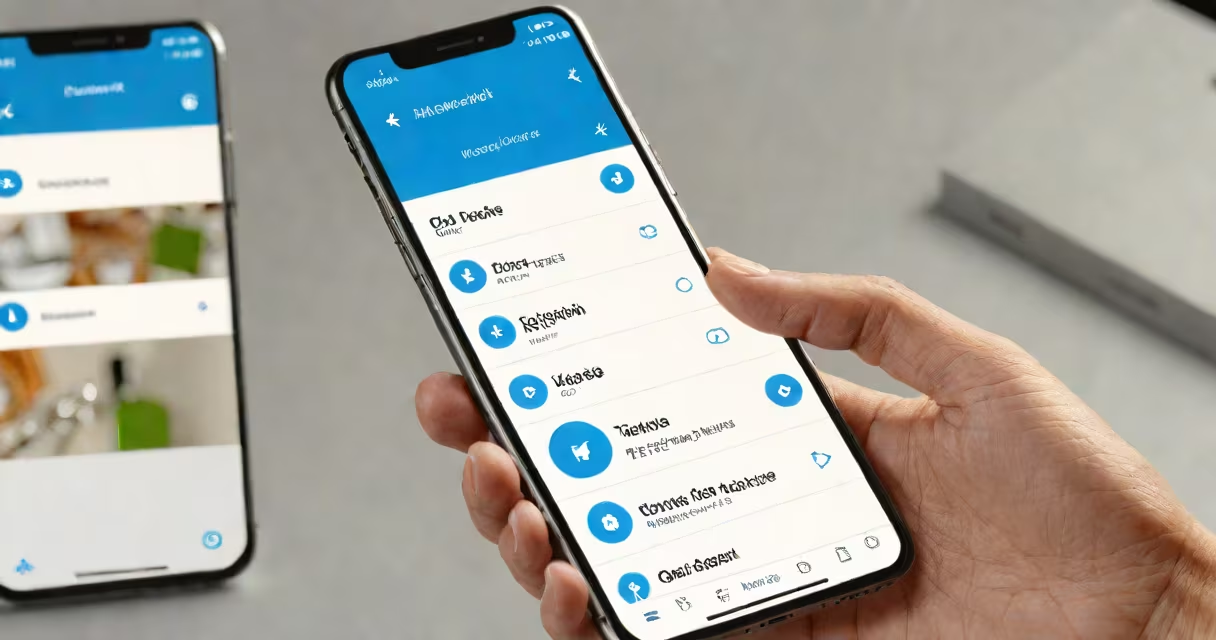
Managing Bluetooth devices means connecting, disconnecting, updating, and troubleshooting wireless peripherals like headphones, keyboards, and speakers through a central interface on your phone, tablet, or computer. This process enables smooth communication between devices using short-range radio signals.
Bluetooth operates on the 2.4 GHz frequency band, allowing devices to exchange data within a 10-meter range. The system uses a master-slave architecture where one device acts as the controller (master) and others as targets (slaves). Most modern operating systems include built-in tools to pair, unpair, and monitor device status.
For example, a user connects a wireless mouse to a MacBook by enabling Bluetooth in System Settings, selecting the mouse from the list of available devices, and entering a six-digit passcode displayed on the screen. Once paired, the mouse remains connected until manually disconnected or powered off.
When you enable Bluetooth on a device, it broadcasts a signal to detect nearby Bluetooth-capable hardware. These devices respond with their unique MAC address and service profile-information about what they do, such as audio playback or keyboard input.
The operating system then attempts to establish a secure connection using a PIN or passkey. Modern Bluetooth versions (4.0 and later) support Secure Simple Pairing (SSP), which eliminates manual PIN entry by using a numeric comparison or out-of-band authentication via NFC or QR codes.
Once paired, the device appears in the list of connected peripherals. You can control access, set default audio output, or remove the device entirely. On Android, for instance, long-pressing a paired device reveals options to forget it, rename it, or view battery level.
Bluetooth devices fall into three categories based on function: audio devices (headphones, speakers), input devices (keyboards, mice), and smart accessories (fitness trackers, smartwatches).
| Device Type | Common OS Interface | Management Task | Example Action |
|---|---|---|---|
| Audio | Windows Sound Settings, iOS Control Center | Select default output | Set AirPods as default audio device |
| Input | macOS Keyboard Preferences, Android Bluetooth Settings | Remap keys, disable auto-connect | Prevent keyboard from reconnecting on startup |
| Smart Accessories | Android Bluetooth Settings, iPhone Settings | View battery, trigger firmware update | Check Fitbit battery level from phone |
Some devices require additional software. For example, Logitech's Bluetooth mice often come with a companion app to customize button functions and adjust sensitivity. Without the app, basic functionality remains, but advanced features are unavailable.
A lesser-known fact: many Bluetooth devices store multiple paired addresses. If a device was previously connected to another phone or laptop, it may still attempt to reconnect automatically-even if not visible in the current device's list. This behavior causes interference and unexpected disconnections.
Users manage Bluetooth devices daily in homes, offices, and public spaces. Common scenarios include connecting a car stereo to a smartphone for music playback, linking a fitness tracker to a tablet for sleep monitoring, or setting up a wireless keyboard for remote work.
Businesses rely on Bluetooth management for inventory tracking using BLE (Bluetooth Low Energy) tags. A warehouse worker scans a shelf with a handheld scanner that pairs with RFID-like beacons to log stock levels in real time. According to the Bluetooth Special Interest Group (SIG), over 4.5 billion Bluetooth-enabled devices shipped annually, with 60% being consumer electronics.
Healthcare providers use Bluetooth-enabled glucose monitors that send readings wirelessly to smartphones. Patients can share data with doctors via apps, reducing the need for in-person visits. The FDA notes that Bluetooth-based medical devices must comply with strict data encryption standards to protect patient privacy.
Many users assume that "Bluetooth" and "Wi-Fi" are interchangeable. They are not. Wi-Fi operates on higher frequencies (2.4 GHz and 5 GHz), supports faster data transfer, and is designed for internet connectivity. Bluetooth is optimized for low-power, short-range communication between personal devices.
Another frequent error is thinking that a device must be "disconnected" before pairing. In reality, most devices allow re-pairing while already connected. However, doing so can cause temporary loss of audio or input lag during the transition.
I once encountered a user whose Bluetooth speaker kept dropping connection during video calls. After checking logs, I discovered the speaker had been paired with two different phones simultaneously. Removing one pairing resolved the issue. This highlights that dual pairing is possible-but not recommended-on older Bluetooth stacks.
Consider a user setting up a JBL Flip 6 speaker with an Android phone:
After successful pairing, the device appears under "Paired Devices." To disconnect, open the Bluetooth menu and tap the gear icon next to the speaker name. Select "Disconnect."
If the speaker fails to connect, try forgetting the device and restarting the pairing process. Some models require a factory reset by holding the power button for 10 seconds.
Use the latest version of your operating system. Older versions may lack support for Bluetooth 5.0 features like increased range and faster data rates. Apple's iOS 15 and later, Windows 11 build 22000+, and Android 11+ all support Bluetooth 5.0.
Keep device firmware updated. Manufacturers release patches to fix security flaws and improve stability. For example, a 2023 update to Sony's WH-1000XM5 headphones addressed a vulnerability that allowed unauthorized access to microphone feeds.
For advanced users managing multiple devices, consider third-party tools like BlueZ on Linux or the Bluetooth Explorer app on macOS. These provide deeper diagnostics, including signal strength (RSSI), connection intervals, and error logging.
When troubleshooting persistent issues, check the device's compatibility list. Not all Bluetooth devices work reliably with all platforms. A 2022 report by PCMag found that 17% of Bluetooth audio devices failed to pair consistently with Windows 10 machines due to outdated drivers.
Understanding how to manage Bluetooth devices ensures smoother integration across your tech system. Whether setting up a new headset or resolving a recurring connection drop, knowing the correct steps prevents frustration and improves usability.