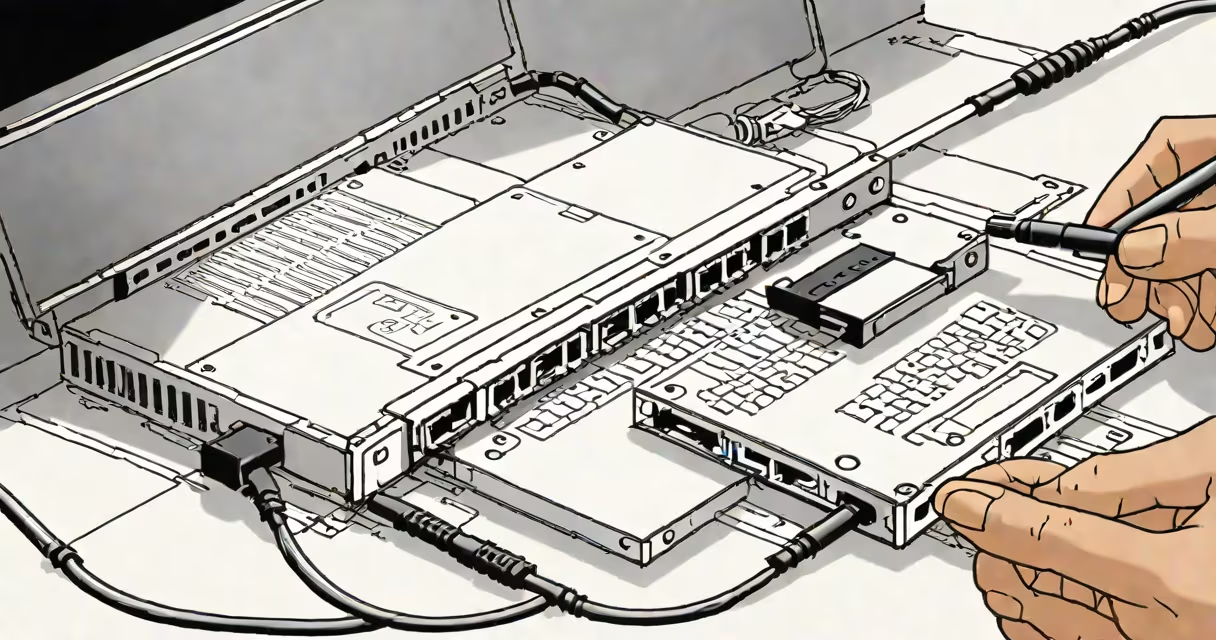
An internal hard disk to USB connector is a device that converts a standard internal SATA or IDE hard drive into an external storage unit using a USB interface. It allows direct access to data stored on a drive removed from a computer, enabling backup, recovery, or file transfer without needing the original system.
These adapters plug into the drive's data and power connectors, then connect to a computer via USB. They support both 2.5-inch and 3.5-inch drives, though 3.5-inch models require external power due to higher energy demands. The connection appears as a removable drive in the operating system, allowing read/write operations just like a flash drive.
They're commonly used to recover data from failed computers, migrate files between systems, or repurpose old drives. A single adapter can serve multiple purposes-backing up a dead laptop's drive, transferring photos from a decommissioned desktop, or creating a portable archive.
The adapter acts as a bridge between the hard drive's native interface (SATA or IDE) and the USB bus. Inside, a small controller chip translates SATA commands into USB protocols. This enables the host computer to recognize the drive as a standard mass-storage device.
When plugged in, the OS detects the drive within seconds. On Windows, it shows up in File Explorer under "This PC." On macOS, it appears on the desktop. Linux systems mount it automatically if udev rules are enabled. No additional drivers are needed on modern systems.
For drives larger than 2TB, ensure the adapter supports 4K sector alignment and UEFI boot compatibility. Some older adapters fail with drives formatted in GPT partition tables, especially on Macs. Always verify the model supports your drive's interface and size.
Adapters fall into two main categories based on drive form factor and interface:
| Type | Drive Size | Interface | Power Needs | Use Case |
|---|---|---|---|---|
| SATA 2.5-inch | 2.5" | SATA III | USB-powered | Laptop drives, SSDs, portable backups |
| SATA 3.5-inch | 3.5" | SATA II/III | External power required | Desktop HDDs, server drives, high-capacity archives |
| IDE (PATA) | 2.5"/3.5" | Parallel ATA | USB-powered (rare) | Legacy systems, older servers, retro computing |
Most modern adapters use SATA III (6 Gbps), which supports speeds up to 550 MB/s. However, actual throughput depends on the drive's performance. A 5400 RPM mechanical drive maxes out around 100-150 MB/s, while a 7200 RPM model hits ~180 MB/s. SSDs can reach near-native speeds.
A non-obvious point: many low-cost adapters lack proper voltage regulation. This causes instability during read/write operations, leading to data corruption. Reputable brands like StarTech and Sabrent include surge protection and signal buffering. Avoid generic eBay models unless they list a certified controller IC (e.g., JMicron JMS578).
Some users assume any USB cable will work. That's false. The adapter requires a USB 3.0 or later port for full speed. Using a USB 2.0 port caps transfer rates at 480 Mbps (~60 MB/s), even with a fast drive.
Another mistake: plugging a 3.5-inch drive into a USB 2.0 port without external power. The drive may not spin up, or the system may report "device not recognized." Always use a powered USB hub or a dual-cable setup with a separate power supply.
Users often confuse these adapters with external enclosures. An enclosure includes a casing, cooling fan, and sometimes a USB-C port. Adapters are bare PCBs-no housing. They're cheaper and smaller but less durable. For long-term storage, an enclosure is safer.
I once used a $12 adapter to recover a 1TB drive from a crashed server. The drive had a failing motor. After connecting it, the system detected the drive but froze during file scanning. I switched to a higher-quality adapter with better error handling, and it completed the copy in 90 minutes. The original cheap model failed after 15 minutes.
One practical example: a photographer lost their primary workstation after a motherboard failure. The 2TB internal drive contained five years of unbacked-up RAW images. Using a SATA-to-USB adapter, they connected the drive to a spare laptop. The OS mounted it instantly. They copied 87,000 files totaling 4.2TB across three days using rsync with checksum verification.
Another case: a university lab upgraded its cluster and needed to extract research data from 20 decommissioned nodes. Each node had a 1TB SATA drive. Using a single USB 3.0 hub and six adapters, the team extracted data in under four hours. They verified integrity using md5sum and archived it on a RAID range.
These tools are also useful for testing drive health. Tools like CrystalDiskInfo can run diagnostics on a drive accessed via USB. You can check SMART attributes such as reallocated sectors, pending sectors, and temperature warnings-all without installing the drive in a system.
Before buying, check your drive's interface. Most modern drives are SATA. Older ones may be IDE. Confirm the pin count: IDE uses 40-pin or 80-pin cables. If you're unsure, take a photo of the connector and compare it to online schematics.
Internal hard disk to USB connectors are essential tools for data retrieval, migration, and emergency access. They turn a static component into a changing storage solution. Choose a quality adapter, verify compatibility, and always handle drives with care to prevent further damage.