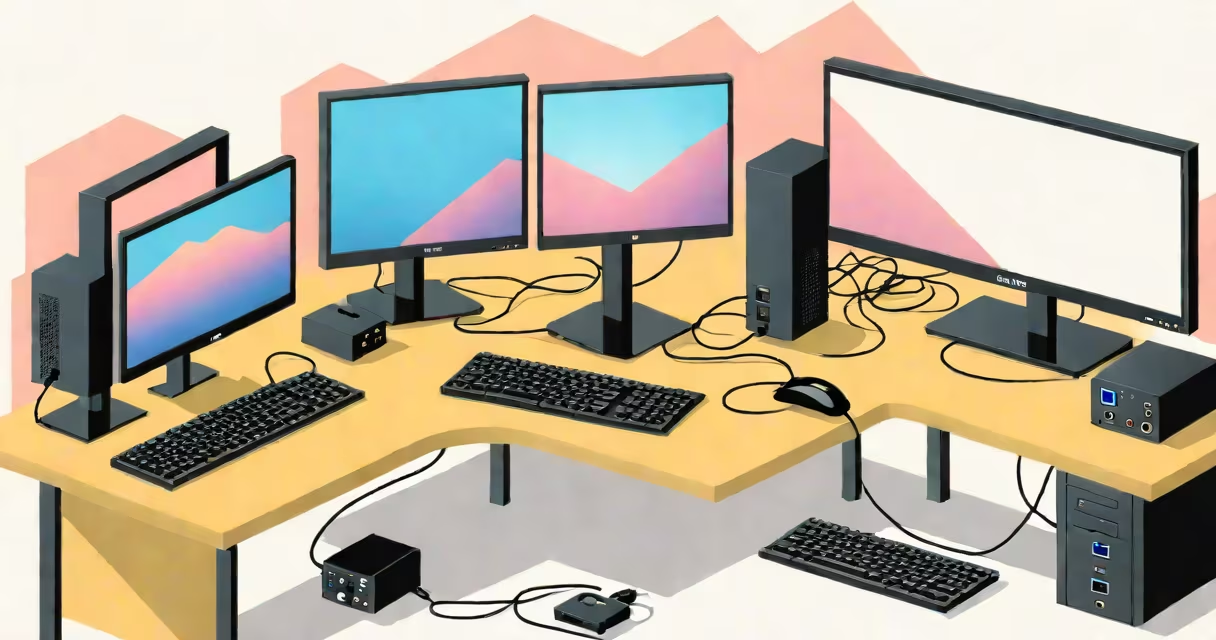
A 2 computers one monitor switch, also known as a KVM switch (Keyboard, Video, Mouse), allows you to control two separate computers using one monitor, keyboard, and mouse. It routes input and output signals between systems based on user selection, eliminating the need to manually swap cables or reboot.
KVM switches operate at the hardware level. When you press a button or use a hotkey, the switch reroutes the video signal from the selected computer to the monitor, while simultaneously sending keyboard and mouse inputs to that same machine. This happens instantly and requires no software installation on either PC.
The core function is signal routing. A physical switch sends electrical signals through internal circuitry to redirect data streams. For example, when you switch from Computer A to Computer B, the monitor receives the video output from B's GPU, the keyboard sends keystrokes to B's USB controller, and the mouse moves the cursor on B's desktop. All actions happen within milliseconds.
Each computer connects via its own video cable (HDMI, DisplayPort, DVI) and USB cables for keyboard and mouse. The KVM switch acts as a central hub. You select which system is active using a physical button, remote control, or software command.
Modern KVMs support high resolutions-up to 4K at 60Hz-and low latency. They handle audio signals too, though not all models include audio passthrough. Some offer USB peripheral sharing, allowing you to plug in a printer or external drive and access it from either computer.
For example, a user running a Windows 11 machine and a Linux Ubuntu system can switch between them smoothly. When switched to Ubuntu, the same keyboard layout applies, and the mouse cursor moves across both operating systems' desktops without delay.
Not all 2 computers one monitor switches are the same. They differ in connectivity, performance, and added functions.
| Type | Video Input | USB Support | Audio Pass-Through | Best For |
|---|---|---|---|---|
| Basic Passive Switch | HDMI, VGA | Yes (limited) | No | Simple setups, low cost |
| Active High-Performance | HDMI 2.0, DisplayPort 1.4 | Full USB 3.0/3.1 | Optional | 4K monitors, gaming, creative work |
| Network-Controlled | HDMI, USB-C | USB 3.2 Gen 2 | Yes (via USB-A) | Remote access, IT departments |
Passive switches rely on the source devices to generate the signal. They're cheaper but may struggle with high refresh rates or HDR. Active switches include amplifiers and signal processors to maintain quality across long cables or high resolutions.
One non-obvious fact: many KVMs don't support dual-monitor setups unless explicitly labeled as such. A single HDMI port limits you to one display. If you run two monitors, you need a switch with multiple video outputs or a daisy-chain setup.
People often assume a 2 computers one monitor switch enables simultaneous access. It does not. Only one computer is active at a time. Attempting to use both systems together causes input conflicts and screen flickering.
Another mistake is assuming all USB cables work the same. Using a low-quality USB-A to USB-B cable can cause intermittent keyboard or mouse lag. Always use shielded, tested cables rated for 5 Gbps speeds if your switch supports USB 3.0.
I once set up a KVM for a developer who ran a Windows VM and a macOS host. He used a generic USB extension cable. The mouse cursor jumped erratically between screens. Replacing the cable with a certified USB 3.0 cable resolved the issue. The problem wasn't the switch-it was the cable.
Home users with dual-boot systems benefit from a 2 computers one monitor switch. You can boot into Windows for gaming and switch to Linux for coding without unplugging anything.
Professionals in design, video editing, and software development use KVMs to toggle between test environments and production machines. A graphic designer might run Adobe Creative Cloud on one PC and Blender on another, switching quickly during rendering tasks.
IT teams in server rooms use KVMs to manage multiple rack-mounted servers. Instead of walking between cabinets, they switch between systems from a single console. According to the U.S. National Institute of Standards and Technology (NIST), centralized access improves audit tracking and reduces configuration errors during maintenance.
Businesses with compliance requirements-like HIPAA or PCI-DSS-use KVMs to prevent data leakage. Switching between systems ensures no clipboard copying occurs between secure and non-secure networks.
Set up begins with connecting each computer to the KVM using compatible cables. Plug the monitor into the KVM's output port. Connect the keyboard and mouse to the KVM's USB ports. Power the KVM if required (some are bus-powered).
Test the switch by pressing the button. The monitor should display the selected computer's desktop. If nothing appears, verify the video cable is securely seated and the computer is powered on.
If the mouse jumps or the keyboard repeats keys, try a different USB cable or port. Some KVMs require firmware updates. Check the manufacturer's website for the latest version.
When troubleshooting, remember: the KVM doesn't replace your graphics card or USB controller. It only manages signal routing. If the monitor shows a blank screen, the issue lies with the computer's output, not the switch.
A 2 computers one monitor switch simplifies multi-computer workflows. It's not a virtualization tool or a remote desktop solution. It's a physical signal router that gives you instant access to two systems from one interface.
Choose a model with enough video bandwidth for your resolution and refresh rate. Use certified cables. Understand that only one system is active at a time. With proper setup, a 2 computers one monitor switch eliminates clutter and boosts productivity.