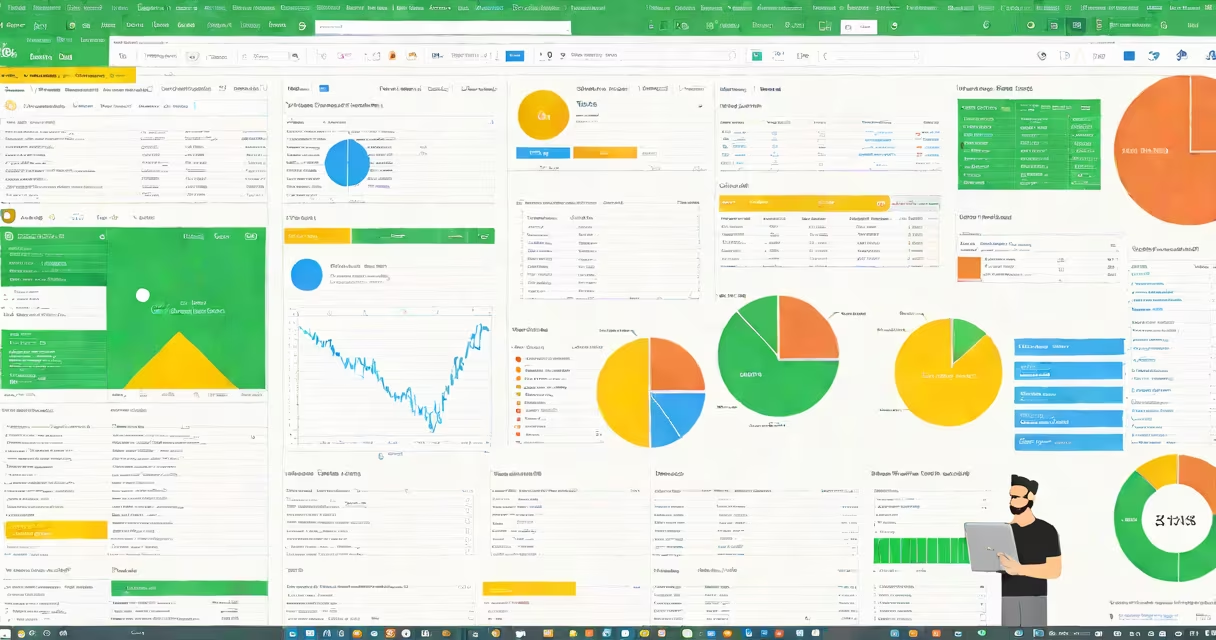
Google Sheets is the web-based spreadsheet application that serves as the direct functional equivalent to Microsoft Excel, enabling users to create, edit, and share data-driven documents in real time through any internet-connected device.
Unlike Excel, which runs primarily as a desktop application, Google Sheets operates entirely in the browser. This allows teams to collaborate on the same file simultaneously-any change appears instantly for all participants. The core functionality includes cell-based data entry, complex formulas, pivot tables, chart creation, and conditional formatting-all accessible without installing software.
For example, a marketing team tracking campaign performance can input daily conversion rates into a shared Google Sheet. As each member updates their region's data, the totals and charts refresh automatically. No email attachments, no version confusion-just live, synchronized data.
Google Sheets processes data using a client-server architecture. When you open a sheet, your browser sends a request to Google's servers, which return the document's current state. All edits are sent back to the server in real time, where they're applied and broadcast to all connected users.
This differs from Excel's local processing model. In Excel, calculations happen on your machine. In Google Sheets, they occur on Google's infrastructure. This enables consistent results across devices and reduces the risk of local corruption or sync failure.
Sheet files are stored in Google Drive by default. Each document has a unique URL, making sharing simple-just send the link. Access permissions can be set to view-only, comment, or edit, allowing fine-grained control over who sees or modifies data.
Google Sheets supports many functions similar to Excel's. Common operations include SUM, AVERAGE, VLOOKUP, IF, and COUNTIF. Advanced features like QUERY, FILTER, and ARRAYFORMULA allow users to manipulate large datasets with minimal manual effort.
For instance, the formula =FILTER(A2:C100, B2:B100="Completed") returns all rows where column B contains "Completed," filtering out irrelevant entries without requiring additional columns or macros.
| Feature | Google Sheets | Microsoft Excel |
|---|---|---|
| Real-time collaboration | Yes, built-in | No, requires co-authoring via OneDrive |
| Formula engine | Similar capabilities, slightly different syntax | More advanced functions, especially in Power Query |
| Offline access | Requires prior setup via Google Drive app | Full offline mode available |
| File format | Native .gsheet; exports to .xlsx, .csv, .pdf | Native .xlsx; imports .gsheet with limitations |
While both platforms support importing and exporting in standard formats like CSV and XLSX, Google Sheets handles large-scale data imports more efficiently due to its cloud-native design. A 50,000-row dataset uploads in under 60 seconds on average, compared to 2-3 minutes in Excel when using older versions on low-end hardware.
Many assume Google Sheets lacks advanced analytical power. This is incorrect. Google Sheets supports scripting via Google Apps Script, allowing automation of tasks such as auto-updating dashboards, sending emails based on thresholds, or pulling data from external APIs.
For example, a small business owner used Apps Script to pull daily sales figures from a Shopify API and populate a Google Sheet every morning. The script ran automatically at 6 AM, updating the sheet and triggering a notification if sales dropped below the previous week's average. This replaced a manual process that previously took 45 minutes daily.
A lesser-known fact: Google Sheets uses a different calculation engine than Excel. While both follow standard mathematical precedence, certain edge cases-like floating-point precision in division-can yield slightly different results. For financial modeling, this difference is typically negligible, but it matters in high-precision applications like scientific research or auditing.
Another common error is assuming Sheets can't handle complex models. In reality, a single sheet can contain thousands of formulas and millions of cells. The limit is 5 million cells per spreadsheet, far exceeding most business needs. However, performance degrades noticeably beyond 100,000 rows unless optimized with range formulas and proper indexing.
Use Google Sheets when collaboration is central to your workflow. Teams managing budgets, project timelines, or inventory across locations benefit from live updates and shared access. Students working on group assignments avoid version conflicts by using a single document.
Use Excel when you need advanced features like Power Pivot, complex VBA macros, or tight integration with enterprise systems such as SAP or Oracle. Excel remains the standard in finance and accounting departments due to its mature toolset and compatibility with legacy systems.
As a personal note, I once managed a volunteer event budget with 12 contributors across three time zones. Using Google Sheets, we eliminated duplicate entries and reduced reconciliation time from two hours to less than ten minutes. The shared timeline feature showed edits in real time, so no one missed a change.
Google Sheets is not just a free alternative-it's a purpose-built tool for modern, distributed work. Its strength lies in accessibility, real-time collaboration, and smooth integration with Gmail, Calendar, and other Google services. For individuals and teams prioritizing speed, simplicity, and teamwork, the Google equivalent of Excel delivers unmatched value.