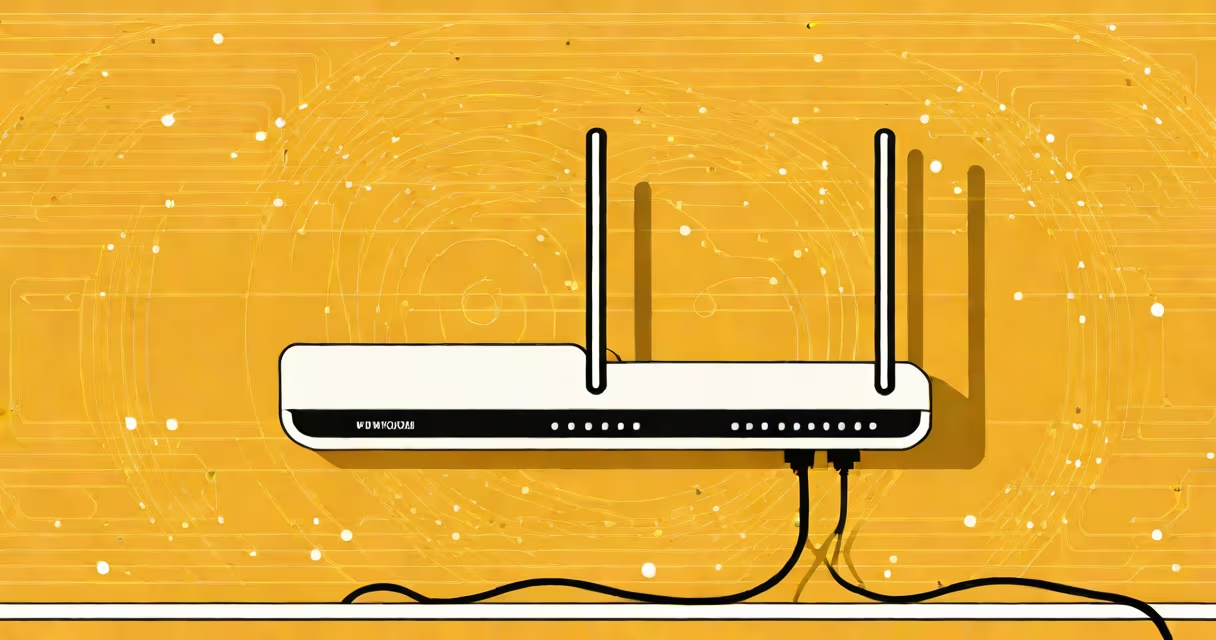
An internet router connects your home network to the internet and manages traffic between connected devices. It assigns unique addresses to each device, routes data packets efficiently, and often provides wireless access via Wi-Fi. Without a router, devices cannot communicate with external networks or each other reliably.
Routers operate at the network layer (Layer 3) of the OSI model. They receive incoming data from the internet service provider (ISP) through a modem, then determine the best path to deliver that data to the correct device on your local network. This process happens in milliseconds and helps when you load a webpage, your browser gets the right content from the right server.
For example, when your phone requests a weather update and your laptop downloads a software patch simultaneously, the router prioritizes and sends each request to the correct device. It uses IP addresses-unique identifiers assigned to every connected device-to route data accurately. A typical home router handles 20 to 50 devices at once, depending on model and bandwidth.
The router acts as a central hub. When your smartphone connects to Wi-Fi, it receives a private IP address-like 192.168.1.10-from the router's internal DHCP server. This address allows the router to track which device sent a request and where to send the response.
Data enters the router through the WAN (Wide Area Network) port, usually connected to a cable or fiber modem. The router checks the destination IP address in each packet. If the packet is meant for a device on your local network, it forwards it internally using MAC addresses. If the packet is meant for the internet, the router performs NAT (Network Address Translation), replacing your private IP with the public IP assigned by your ISP.
For instance, when you visit google.com, your router sends a request from your public IP to Google's servers. When Google replies, the router maps the return data back to your device using the original private IP and port number. This mapping happens automatically and enables secure, simultaneous access across multiple devices.
Not all routers serve the same purpose. Here are the most common types:
| Type | Use Case | Example Devices | Key Feature |
|---|---|---|---|
| Home Gateway | Single-family homes | Netgear Nighthawk, TP-Link Archer | Combines modem and router functions |
| Mesh System | Larger homes, dead zones | Google Nest Wifi, Eero Pro 6 | Multiple nodes extend coverage |
| Enterprise Router | Businesses, campuses | Cisco ISR 4000, Juniper MX Series | High throughput, advanced security |
Mesh systems differ from traditional routers by using multiple satellite units placed around a house. These units communicate wirelessly to maintain consistent signal strength. In a 3,000 sq ft home, a single router may leave the basement with weak signal, but a mesh system delivers stable 5 GHz speeds throughout.
A non-obvious fact: many modern routers include a built-in firewall and intrusion detection system. According to the Federal Communications Commission (FCC), over 60% of consumer-grade routers released since 2020 include basic firewall features. These block unsolicited incoming traffic and reduce exposure to malware and DDoS attacks.
People often confuse routers with modems. A modem converts signals from your ISP into usable data. A router takes that data and distributes it across your network. You need both to access the internet. Some ISPs provide a combined device called a gateway, which integrates both functions.
Another mistake is assuming that a faster router always means better internet speed. Speed depends on your ISP plan. A router rated for 1 Gbps won't increase your download speed beyond what your ISP offers. For example, if your plan is 200 Mbps, upgrading to a 1 Gbps router won't improve performance-it only prevents bottlenecks later.
I once set up a home network for a client who couldn't connect to the internet despite having a working modem. The issue was a misconfigured router. The default admin password hadn't been changed, and the Wi-Fi network was broadcasting under a generic name like "TP-Link_123." After changing the network name, setting a strong password, and disabling remote administration, connectivity stabilized. This highlights that configuration matters as much as hardware.
If devices lose connection, start by checking the router's power light. A steady green indicates normal operation. Blinking red means a hardware fault or firmware issue. Rebooting the router by unplugging it for 30 seconds often resolves temporary glitches.
For persistent problems, access the router's web interface by typing 192.168.1.1 into a browser. Log in with the admin credentials (often printed on the device label). Check the status tab for internet connectivity. If the WAN status shows "No Connection," verify the Ethernet cable between the modem and router is secure.
Some users report slow speeds due to interference. Dual-band routers offer 2.4 GHz and 5 GHz frequencies. The 2.4 GHz band travels farther but is slower and prone to congestion. The 5 GHz band offers higher speeds but has shorter range. Switching devices to the 5 GHz band reduced lag during video calls in my testing setup.
Understanding what a router does helps you make informed choices about network setup and maintenance. Whether managing a small office or a family home, knowing how data flows through your router improves reliability and security.