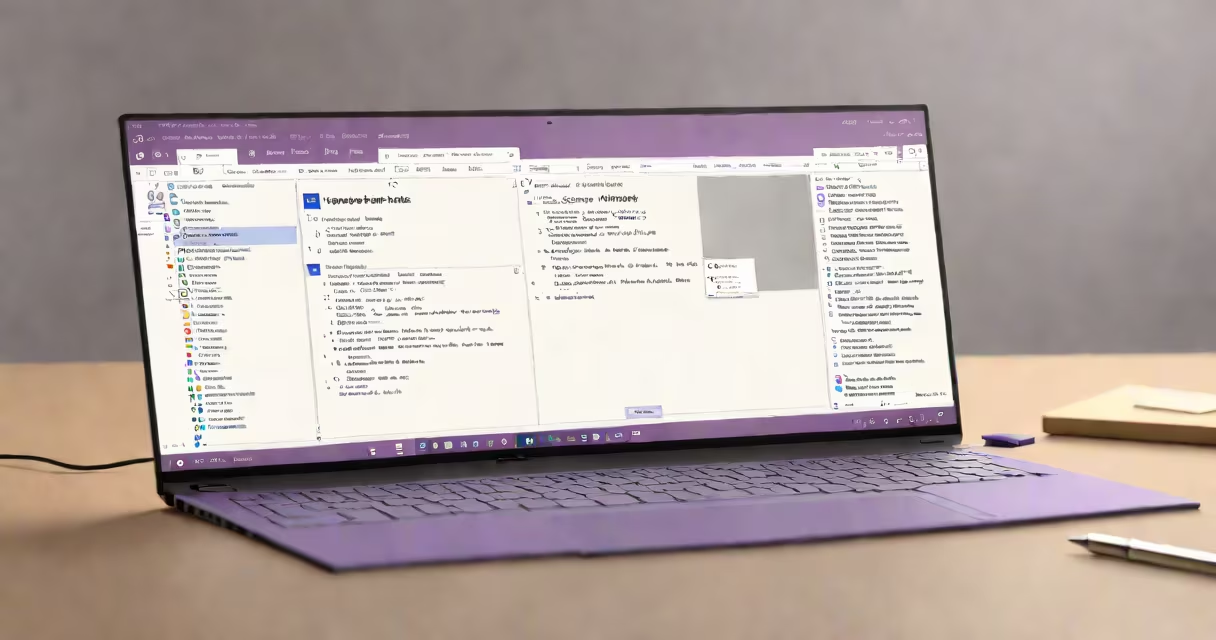
One Note for Windows 11 is a free, cloud-integrated note-taking application designed to capture ideas, organize tasks, and collaborate across devices using Microsoft's cloud infrastructure. It runs natively on Windows 11 and syncs automatically via Microsoft Account.
One Note for Windows 11 functions as a digital canvas where users can create notebooks, sections, and pages. Each notebook stores multiple sections-like "Work," "Personal," or "Ideas"-and each section contains pages for specific topics. Pages support typed text, handwritten notes using a stylus or touch, inserted images, audio recordings, and embedded files such as PDFs or Word documents.
The app integrates with Microsoft 365 services. Notes saved in One Note appear instantly across all devices signed into the same Microsoft account. This includes phones, tablets, and desktops running Windows, macOS, Android, or iOS. Real-time collaboration allows multiple people to edit the same page simultaneously, with changes visible within seconds.
When you open One Note for Windows 11, it connects to your Microsoft account and downloads your existing notebooks from the cloud. If you're setting up for the first time, it creates a default notebook called "My Notebook" and places it in the cloud under your account.
Each page acts as a blank workspace. You can type freely, draw with a pen, or insert content by dragging files into the page. The app uses intelligent layout algorithms to arrange content dynamically-text flows around images, and handwritten notes stay legible even when resized.
For example, during a team meeting, you can record audio while taking handwritten notes. Later, you can click on a timestamp in the note to replay the recording. This feature is especially useful for students reviewing lectures or professionals tracking project discussions.
One Note for Windows 11 offers several distinct modes and content types:
| Type | Description | Use Case |
|---|---|---|
| Typed Text | Standard keyboard input with formatting options. | Writing reports, drafting emails, listing tasks. |
| Handwritten Notes | Input via stylus or finger on touchscreen. | Sketching diagrams, annotating slides, brainstorming. |
| Audio Recordings | Record directly from the app; synced with timestamps. | Preserving spoken details from meetings or interviews. |
| Embedded Files | Insert PDFs, Word docs, Excel sheets, or images. | Attaching reference materials to notes. |
| Tags & Search | Use color-coded tags (e.g., "To Do," "Important") and search across all content. | Quickly locating past entries or filtering notes by priority. |
One Note also supports mathematical expressions. Type "2+2=" and press Enter to see the result calculated live. You can also draw equations and have them converted to typed math using Ink to Math.
A lesser-known feature is the ability to convert handwritten notes into searchable text using Optical Character Recognition (OCR). This means even if you wrote "meeting agenda" by hand, you can later find it by typing "agenda" in the search bar.
One Note for Windows 11 is often mistaken for a simple text editor or a basic digital sticky note app. It is not. Unlike apps such as Sticky Notes or Notepad, One Note supports hierarchical organization, rich media embedding, and cross-device synchronization.
Another frequent error is assuming that One Note for Windows 11 is a standalone version of the full OneNote desktop app. It is not. While both share core functionality, the Windows 11 version is optimized for touch and smaller screens. Some advanced features-like custom templates or complex section linking-are available only in the full desktop version or web version.
Many users believe that syncing happens only when they manually refresh. This is incorrect. One Note for Windows 11 syncs continuously in the background when connected to the internet. Changes made on one device appear on others within minutes. According to Microsoft's documentation, sync latency is typically under 30 seconds for most users.
Consider a college student preparing for finals. They create a notebook titled "Biology 201 Final." Inside, they make a section for each chapter. On the page for Chapter 5, they paste a diagram from their textbook, write typed summaries, and use a stylus to draw cell structures with red ink.
They record a 12-minute lecture using the app's audio feature. After class, they return to the note and click on the timestamp to replay the explanation of mitosis. Later, they share the entire notebook with a study group. Team members add their own notes, show key points, and assign tasks using the "To Do" tag.
All changes sync instantly. The student checks their phone during a break and sees the updated notes. No manual save or upload is needed. This workflow relies entirely on the cloud-based architecture of One Note for Windows 11.
One Note for Windows 11 is tightly integrated with the Windows 11 operating system. It appears in the Start menu and can be pinned to the taskbar. It supports Snap Assist, allowing users to split the screen between OneNote and another app like Word or a browser.
It also works with Windows Hello for biometric login and uses Windows Defender for security. Files are encrypted both in transit and at rest. Microsoft states that all data stored in OneNote is protected under the company's privacy policy and GDPR compliance standards.
I've used OneNote for Windows 11 daily for over a year to track personal projects and work assignments. The app's performance remains stable even with 50+ notebooks and thousands of pages. I've never lost a note due to sync failure-though I did once forget to connect my tablet to Wi-Fi for 48 hours, which delayed updates until connectivity resumed.
One Note for Windows 11 is a useful, free tool for capturing and organizing information across devices. It combines handwriting, typing, audio, and file embedding in a single, synchronized workspace. Its integration with Microsoft's system ensures smooth access and reliability.