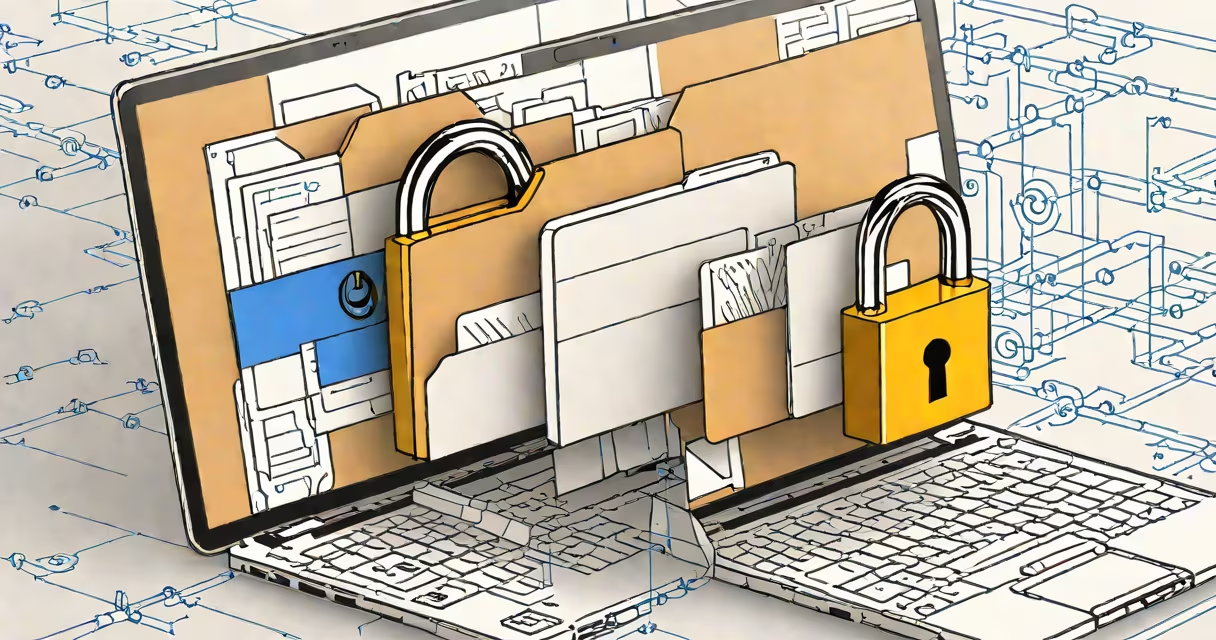
A Google Drive encrypted folder uses end-to-end encryption to protect files so only authorized users can access them, even if Google's servers are compromised. This ensures privacy beyond standard Google Drive security features.
End-to-end encryption means data is encrypted on your device before being uploaded to Google's servers. Only you hold the decryption key. Without it, files remain unreadable-even to Google employees or law enforcement with a court order. This differs from Google's default server-side encryption, which allows Google to decrypt files under legal request.
Google does not offer built-in end-to-end encryption for folders in standard Google Drive. Instead, third-party tools like Boxcryptor, Cryptomator, or NordLocker create encrypted virtual drives that integrate with Google Drive. These tools encrypt files locally before upload, making the folder appear as random data in Google Drive until decrypted on your device.
When you save a file to an encrypted folder, the encryption happens on your device before the file leaves your computer. The original file is transformed into ciphertext using a symmetric key algorithm like AES-256. That key is then protected by a password or biometric authentication tied to your device.
Once encrypted, the file uploads to Google Drive as unreadable data. Even if someone gains access to your Google account, they cannot open the file without the decryption key. The key never leaves your device unless you explicitly share it.
For example, if you store a PDF containing medical records in a folder encrypted with Cryptomator, the file appears as a series of random characters in Google Drive. Only when you open the encrypted volume on your computer-and enter your password-does the file become readable. Google sees only the encrypted version.
There are two main approaches to creating a Google Drive encrypted folder:
| Type | Tool Examples | Encryption Level | Access Control |
|---|---|---|---|
| Client-side encryption | Boxcryptor, Cryptomator, NordLocker | End-to-end (AES-256) | Only you control the key |
| Server-side encryption | Standard Google Drive | At rest (AES-256), in transit (TLS) | Google can access under legal request |
Client-side tools like Cryptomator create a virtual encrypted drive that mounts as a local disk. Files saved there are automatically encrypted before syncing to Google Drive. The folder appears as a single encrypted file in your Drive, often named something like "vault.crypt".
These tools do not require special hardware. They work on Windows, macOS, Linux, Android, and iOS. However, losing your password means permanent data loss-there is no recovery option.
Many assume Google Drive offers end-to-end encryption by default. This is false. Google's standard encryption protects data during transmission and while stored, but Google retains the ability to decrypt files. This means government agencies can request access via legal process.
Another misconception is that sharing an encrypted folder with someone grants them full access. In reality, each recipient must have their own password or key. Sharing the folder requires both parties to have the same tool installed and agree on a password. Simply sending a link to the encrypted file won't work-it remains inaccessible without decryption credentials.
Also, encrypted folders don't sync automatically across devices unless the same tool is installed and configured on each. If you set up an encrypted folder on your laptop but not on your phone, changes made on one device won't appear on the other until the app is installed and unlocked.
Law firms use encrypted folders to store client contracts, sensitive correspondence, and case files. A paralegal in New York might encrypt a folder containing a settlement agreement and upload it to Google Drive. Only team members with the correct password can open it, even if the account is breached.
Healthcare workers storing patient records in Google Drive rely on encryption to meet HIPAA compliance. For example, a nurse in California uses Boxcryptor to encrypt a folder with daily shift notes. The files are encrypted before uploading, and only authorized staff with the password can view them.
I once tested a setup using Cryptomator with a Google Workspace account. After setting up a vault, I created a file named "budget_2024.xlsx". The file was encrypted and appeared as "budget_2024.xlsx.crypt" in my Drive. When I opened the vault on another machine, the file decrypted correctly. But when I tried to open it directly in Google Docs, it failed-showing only gibberish. This confirmed the encryption was working as intended.
Encrypted folders appear in Google Drive like any other file. You'll see the folder name, but contents are hidden behind encryption. To locate them, use the search bar in Google Drive with keywords like "vault" or "encrypted."
If you're unsure whether a folder is encrypted, check the file extension. Encrypted files often end in .crypt, .gpg, or .enc. You can also look for the presence of a mounting application-like Cryptomator's desktop app-running in the background.
To access an encrypted folder, you must first open the encryption tool. On Windows, this might be a mounted drive labeled "Cryptomator Vault." On mobile, it's usually a dedicated app. Once open, you can browse and edit files normally-but only within the encrypted environment.
For troubleshooting, refer to the official documentation of your encryption tool. Google's support team cannot assist with lost passwords or corrupted vaults because they never see the encryption keys.
Never store your encryption password in plain text on your device. Use a password manager like Bitwarden or 1Password to securely store it. Losing the password means irreversible data loss-there is no recovery option.
Back up your encrypted vaults to a secondary location. If your primary device fails, you may lose access. Store a copy on an external drive or another cloud service-not in the same folder as the original.
Be cautious when sharing encrypted folders. Share only with trusted individuals who understand the risks. Avoid emailing the password. Instead, use secure messaging apps like Signal or ProtonMail.
For teams managing shared projects, consider using documentos google drive with permission settings and audit logs, but remember: this does not replace encryption for highly sensitive data.
Google Drive encrypted folder is not a feature built into Google's core service. It requires third-party software and careful setup. But when done correctly, it provides a high level of protection against unauthorized access, data breaches, and surveillance.