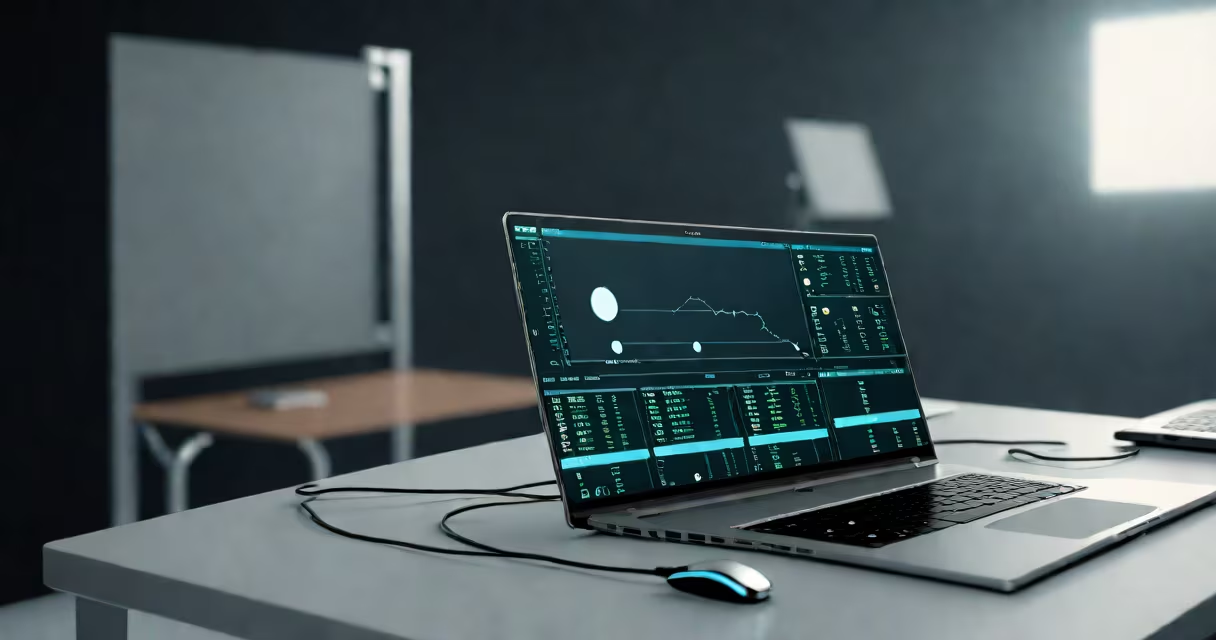
Free remote access allows users to connect to and control another computer or device over the internet without physical presence. It enables file transfer, software installation, troubleshooting, and system management from any location with network access.
Remote access relies on client-server architecture. A host machine runs a service that listens for incoming connections. A client application on another device sends commands and displays the host's screen in real time. All communication happens through encrypted channels to prevent interception.
Most free remote access tools use protocols like RDP (Remote Desktop Protocol), VNC (Virtual Network Computing), or SSH (Secure Shell). These protocols define how data moves between devices and ensure authentication and encryption. For example, Windows uses RDP natively, while Linux systems often rely on VNC or SSH.
When you initiate a free remote access session, your client software sends a request to the host device. The host verifies credentials-usually a username and password or public-key authentication-and grants access if valid. Once connected, your mouse and keyboard inputs are relayed to the host, and screen updates are streamed back.
For security, most tools encrypt traffic using TLS or AES. This prevents eavesdropping. Some services also require multi-factor authentication (MFA), which adds a second verification step, such as a code sent to a mobile device.
A common misconception is that free remote access is inherently unsafe. While unsecured tools like older VNC versions without encryption pose risks, modern free options include built-in protections. For example, TeamViewer's free version includes end-to-end encryption and automatic port forwarding.
Different tools serve distinct purposes based on platform, ease of setup, and features. Here's a breakdown of major categories:
| Tool Type | Best For | Platform Support | Security Features |
|---|---|---|---|
| RDP (Windows) | Remote desktop sessions on Windows machines | Windows, macOS (via client) | NTLMv2, TLS encryption, MFA via Azure AD |
| VNC (Cross-platform) | Screen sharing across operating systems | Windows, macOS, Linux, Android | Optional encryption; many free versions lack it |
| SSH (Linux/Unix) | Command-line access to servers | Linux, macOS, Windows (via PuTTY) | Public-key authentication, strong cipher suites |
| Cloud-based (e.g., AnyDesk, TeamViewer) | Quick setup, cross-device control | Windows, macOS, Linux, iOS, Android | End-to-end encryption, auto-generated IDs, MFA |
TeamViewer's free version supports personal use only. It allows unattended access to devices, file transfers, and chat. However, commercial use requires a paid plan. Similarly, AnyDesk offers unlimited free access for personal projects but restricts business usage.
One non-obvious fact: Many free remote access tools route traffic through their own servers. This simplifies NAT traversal and firewall bypass but introduces a potential privacy risk. Data passes through third-party infrastructure, even if encrypted. For sensitive operations, direct peer-to-peer connections are safer.
Free remote access is widely used in IT support, remote work, and home automation. System administrators use it to reboot servers, update software, or diagnose crashes without traveling. Employees working from home access office computers to retrieve files or run specialized applications.
Home users often use it to assist family members with tech issues. For example, a parent can remotely fix a child's laptop startup problem during a video call. This reduces downtime and eliminates the need for in-person visits.
A frequent misunderstanding is that free remote access tools are limited to basic functions. In reality, many offer advanced features. For instance, Chrome Remote Desktop supports multiple monitors, clipboard syncing, and audio redirection. It integrates with Google Workspace and requires no installation on the host side.
I once set up remote access for a small nonprofit to manage donor records stored on a single desktop. The team had no IT staff. Using Chrome Remote Desktop, they accessed the machine from tablets and phones. It took under ten minutes to configure. The tool required no admin rights on the host, and the connection remained stable over low-bandwidth rural internet.
Free remote access is not the same as remote desktop hosting services like AWS EC2 or Azure Virtual Machines. Those provide virtual servers in data centers, not access to existing physical devices. You cannot use free remote access to run a website or database unless the target machine is already configured for such tasks.
It also differs from screen-sharing apps like Zoom or Microsoft Teams. These allow others to view your screen during meetings but don't grant full control. Free remote access gives complete administrative rights, enabling changes to system settings, file deletion, and software installation.
Another distinction: free remote access doesn't replace dedicated remote monitoring tools like Nagios or Datadog. These track system performance, uptime, and logs. Free remote access lets you act on problems but doesn't alert you to them automatically.
Always change default passwords on remote access services. Use long, unique passwords or passphrases. Avoid reusing credentials across platforms.
Enable two-factor authentication where available. For example, TeamViewer supports authenticator apps and SMS codes. This blocks unauthorized access even if a password is compromised.
Limit access duration. Close sessions when done. Most tools log activity. Review logs regularly to detect suspicious behavior. A login from a country you've never visited may indicate a breach.
If you're setting up remote access for someone else, use temporary passwords and disable the service afterward. Never leave it running indefinitely.
For organizations, consider using a zero-trust model. Require identity verification, device health checks, and role-based permissions. Even free tools can integrate with identity providers like Okta or Azure AD.
Free remote access is not a substitute for proper backup procedures. If you accidentally delete a file during a session, recovery depends on backups-not the remote tool.
Start with Chrome Remote Desktop. It's free, works across devices, and requires no account creation. Install the extension on your browser, then enable remote access on the target machine. The tool generates a six-digit code for connection.
For Linux users, OpenSSH is the standard. Run sudo apt install openssh-server on Ubuntu, then connect via ssh user@ip_address. Use ssh-keygen to set up passwordless login.
For quick access to Windows machines, use the built-in Remote Desktop Connection app. Enable Remote Desktop in Settings → System → Remote Desktop. Enter the IP address and credentials.
Free remote access is a practical, secure way to manage systems and collaborate across distances. With proper setup and awareness of limitations, it enhances productivity and reduces dependency on physical presence.