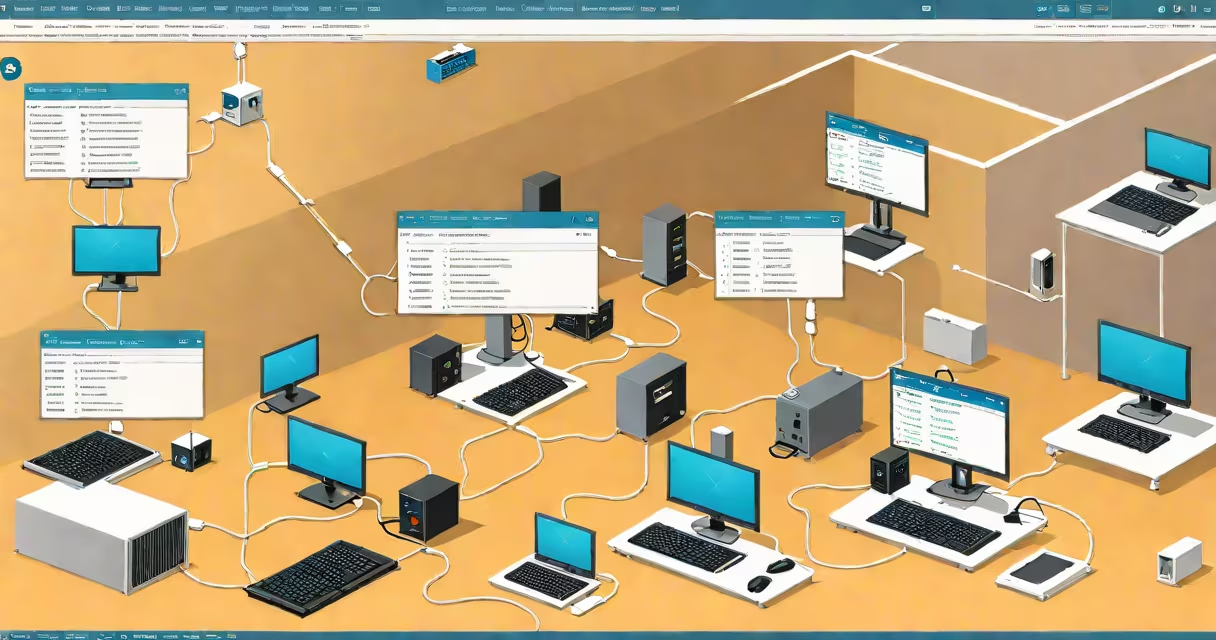
Find devices on my network means identifying all active devices connected to your local network using their IP addresses, MAC addresses, or hostnames. This includes phones, laptops, smart TVs, printers, and IoT gadgets. Tools like nmap, arp-scan, or built-in system utilities can detect them.
Network discovery works by sending packets to all IP addresses within a subnet and listening for responses. Devices that reply are listed as active. The process relies on protocols like ARP (Address Resolution Protocol) and ICMP (ping).
For example, a home network with the IP range 192.168.1.0/24 typically includes devices such as a router at 192.168.1.1, a laptop at 192.168.1.10, and a smart thermostat at 192.168.1.25. A scan reveals all responding hosts.
When you run a network scan, software sends broadcast packets to every IP address in a defined range. Devices that recognize the request respond with their MAC address and IP. This creates a list of live devices.
Common methods include:
These techniques combine to build a complete picture of active devices. For instance, a scan using nmap -sn 192.168.1.0/24 returns all IPs that respond to a ping or ARP request.
Several tools allow you to find devices on your network. Some are built into operating systems; others require installation.
| Tool | Platform | Command Example | Use Case |
|---|---|---|---|
| arp-scan | Linux, macOS, Windows (via WSL) | sudo arp-scan --local |
Fast, reliable ARP-based scanning. Best for local networks. |
| nmap | Multi-platform | nmap -sn 192.168.1.0/24 |
Advanced scanning with service detection. Popular among IT professionals. |
| Advanced IP Scanner | Windows | GUI tool. Enter IP range and click Scan. | Simple interface for non-technical users. |
| netstat | Linux, macOS, Windows | netstat -r or ipconfig /all |
Shows current connections and network configuration. Not a scanner, but useful for context. |
On Linux or macOS, use arp-scan --local to see all devices on your local subnet. On Windows, run Command Prompt as administrator and enter arp -a to view the ARP table. This shows recently contacted devices.
I once used nmap -sn 192.168.1.0/24 on a home network with 12 devices. The scan returned 9 active entries. Among them were a desktop at 192.168.1.15, a phone at 192.168.1.22, and a security camera at 192.168.1.30. The remaining three were offline or disconnected.
Many assume that all devices appear in a scan. That's false. Devices may not respond due to firewall settings, power-saving modes, or disabled network services.
For example, a smartphone set to "do not disturb" mode may stop responding to pings. Even if it's connected, it won't show up in a standard scan unless it replies to ARP.
Another confusion: thinking that finding devices means seeing their names. Most scans return only IP and MAC addresses. To get hostnames, you need DNS resolution or mDNS (Bonjour/Zeroconf) support. Not all devices publish their names.
A non-obvious fact: some routers hide certain devices from discovery. For example, a guest Wi-Fi network may isolate clients and prevent them from being seen by other devices. Scanning from a guest connection won't reveal devices on the main network.
You need to find devices on your network for security, troubleshooting, and management. If a device appears that you didn't add, it could be unauthorized access.
For example, during a home network audit, I discovered a device with MAC address 00:1A:2B:3C:4D:5E registered as "Unknown." Further investigation revealed a compromised smart light bulb. Removing it prevented potential data leaks.
IT teams use device discovery to manage inventory, enforce policies, and detect anomalies. Schools and businesses rely on it to ensure only authorized hardware connects to internal systems.
Home users benefit too. Knowing which devices are on the network helps detect malware, prevent bandwidth hogging, and troubleshoot connectivity issues.
Always scan responsibly. Avoid scanning networks you don't own. Unauthorized scanning may violate privacy laws or network policies.