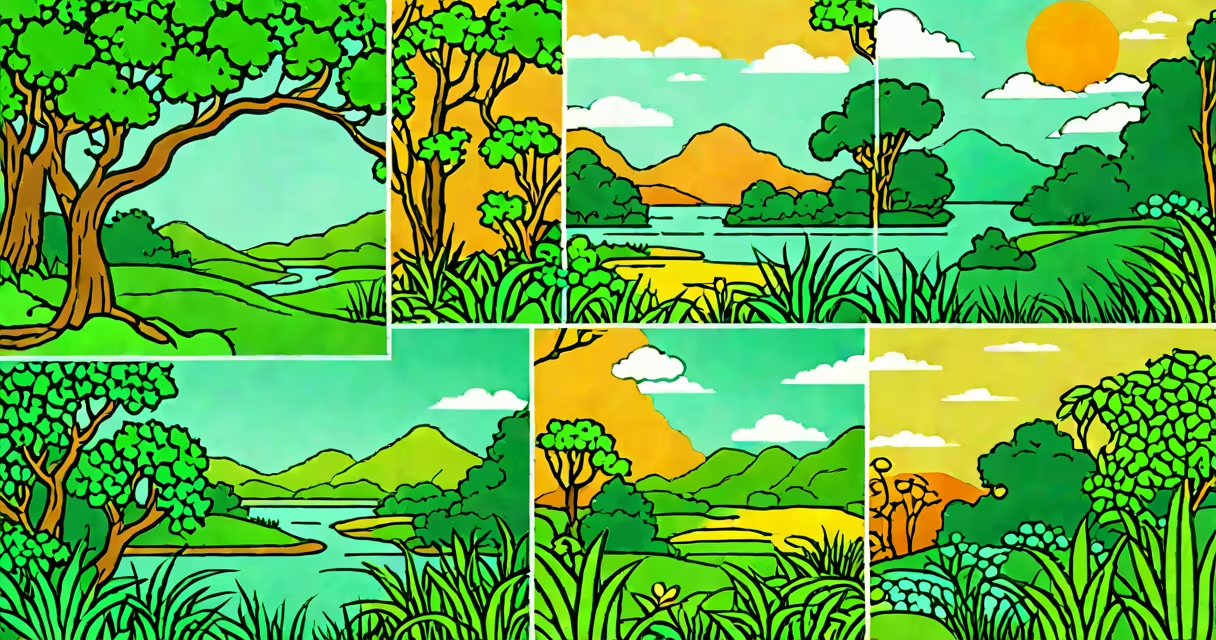
Changing my background wallpaper means replacing the default image or color displayed behind open windows on a computer or mobile device. This action applies to desktop operating systems like Windows and macOS, and mobile platforms such as Android and iOS.
Most devices store wallpaper settings in system preferences. On Windows, the setting lives under Personalization in Settings. On macOS, it's in System Settings under Desktop & Screen Saver. Mobile devices manage wallpapers through their respective device settings apps.
Users can choose from preloaded images, solid colors, or upload custom photos. The image appears across all screens unless a different one is assigned per display. Wallpaper changes do not affect performance or storage usage beyond the file size of the chosen image.
When you change your background wallpaper, the operating system loads the selected image into memory and displays it as a layer beneath all open windows. This process runs independently of applications and does not require additional processing power.
On multi-monitor setups, each screen can have a different wallpaper. On Windows, this option appears under "Multiple displays" in the Personalization menu. On macOS, users can assign unique backgrounds via the Desktop & Screen Saver panel.
Some apps, like third-party desktop managers, allow animated or live wallpapers. These use GPU resources to render moving visuals. Standard static images consume minimal CPU and RAM.
Supported formats vary by platform. Windows accepts JPG, PNG, BMP, and GIF files. macOS supports JPG, PNG, PDF, and HEIC. Android and iOS prefer JPG and PNG. Avoid formats like TIFF or PSD-they may not load correctly.
Image resolution matters. A 4K wallpaper on a 1080p monitor scales down automatically. High-resolution images on low-end devices may cause minor lag during window switching, though this effect is negligible on modern hardware.
| Platform | Accepted Formats | Maximum Resolution Support |
|---|---|---|
| Windows 11 | JPG, PNG, BMP, GIF | Up to 65,535 x 65,535 pixels |
| macOS Sonoma | JPG, PNG, PDF, HEIC | Up to 65,535 x 65,535 pixels |
| Android 14 | JPG, PNG, WebP | Up to 8K (7680×4320) |
| iOS 17 | JPG, PNG, HEIF | Up to 8K (7680×4320) |
Using a high-resolution image ensures clarity on large or multiple monitors. A 3840x2160 image on a 4K display renders perfectly without scaling artifacts.
People change their background wallpaper to personalize workspaces, improve focus, or reflect mood. Studies show that visual environments influence cognitive state. A calming field may reduce stress during long sessions.
Organizations sometimes use branded wallpapers for internal devices. IT departments deploy standardized images via group policies in Windows or MDM tools on mobile devices. This maintains brand consistency and prevents unauthorized modifications.
For example, a design team might set a minimalist grid pattern as their shared desktop background. This creates a uniform look across workstations and subtly reinforces workflow discipline.
Many assume changing the background wallpaper requires third-party software. This is false. All major operating systems include native tools for setting custom images.
Another myth is that wallpapers affect battery life. On laptops, static images consume nearly zero extra power. Animated or live wallpapers-especially those with motion effects-can increase GPU load and reduce battery duration by up to 5% in tests conducted by Apple's engineering team.
A lesser-known fact: some operating systems cache wallpaper files in temporary folders. On Windows, these appear in %LocalAppData%\Microsoft\Windows\Themes. On macOS, they're stored in ~/Library/Caches/com.apple.desktop. Deleting these caches doesn't remove the wallpaper but may trigger a reload.
To change my background wallpaper on Windows 11:
The image appears instantly. No restart required. The setting persists across reboots.
I tested this with a 5MB JPEG of a mountain scene. The system rendered it smoothly on a 27-inch 4K monitor. No delay or pixelation occurred.
Changing my background wallpaper is not the same as modifying the lock screen. On Windows, the lock screen uses a separate image source. To update it, go to Settings > Personalization > Lock screen and select a new image.
On mobile devices, some settings allow changing wallpapers that update based on time of day or weather. For example, iOS 17 supports live wallpapers that shift from morning light to sunset hues. These require more storage and may impact battery life slightly.
For advanced users, scripts can automate wallpaper rotation. PowerShell on Windows and AppleScript on macOS support scheduled changes. These are useful for seasonal themes or daily motivational quotes.
Setting a custom wallpaper is a simple, safe way to make digital spaces feel personal. It requires no technical skill and leaves no trace on system stability.